
Das gewisse Extra.
So gut wie keine zusätzliche Arbeit.
Intelligente Textvorschläge, lizenzfreie Stockbilder, und ein eigener Musikkatalog, alles integriert in deinen Editor. Du musst nur noch auswählen.
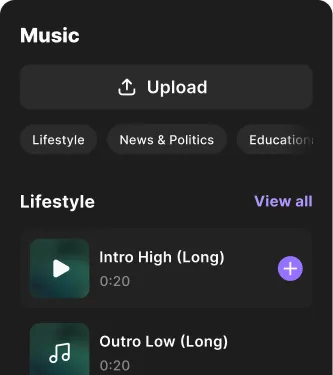
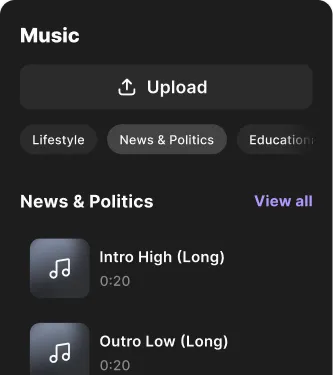


Triff den richtigen Ton.
Durchsuche den Musikkatalog von Riverside, der speziell für verschiedene Genres von Inhalten, von Nachrichten und Bildung bis zu Lifestyle und True Crime, zusammengestellt wurde. Oder lade einfach deine eigene Musik hoch.

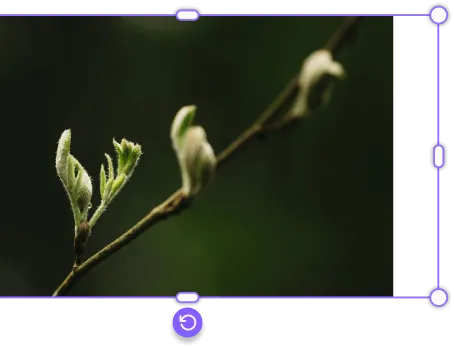
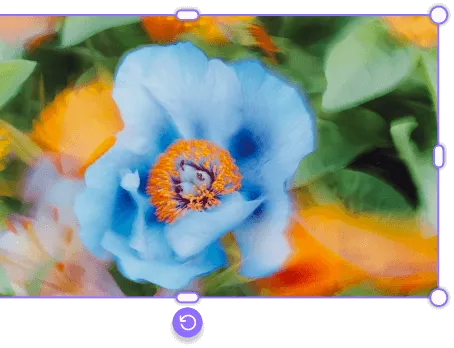
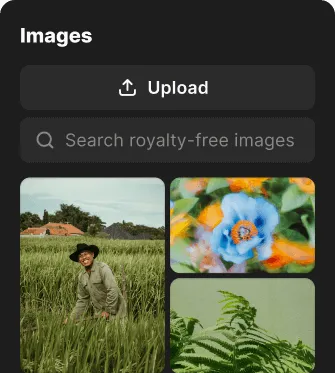

Zeichne ein klares Bild.
Klicke für themenbezogene Bildideen oder durchsuche selbst die Stockbild-Bibliothek. Du kannst alles kostenlos nutzen. Natürlich kannst du auch deine eigenen Bilder hochladen.
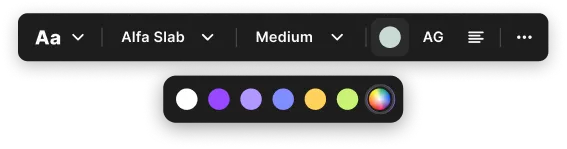
Markiere jedes Wort.
Erstelle Titel, Listen, Zitate oder etwas anderes. Damit du es leichter hast, haben wir Vorschläge für dich, die du nach Belieben ändern und gestalten kannst.



Mehr Möglichkeiten für perfekten Content.


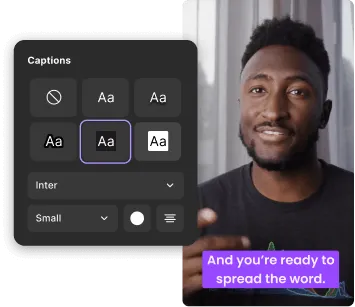
So funktioniert es.

Text-, Bild- und Musik-Overlays
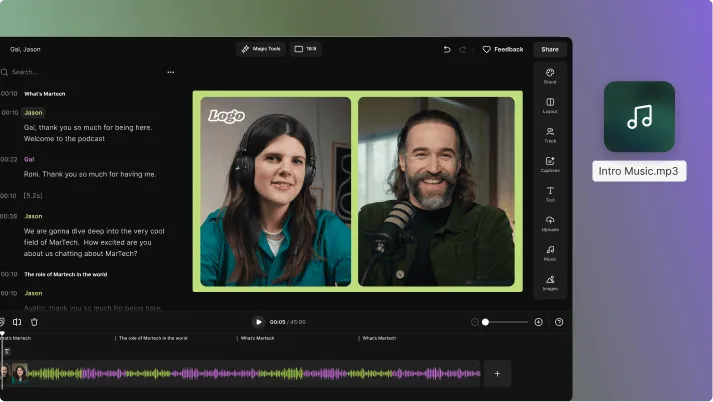
Ein kompletter Produktionsablauf für deine ganze Story.
Promoten.


Frequently Asked Questions
Overlays help clarify information, reinforce branding, and keep viewers engaged without interrupting the flow of the video.
The types of video overlays include different elements layered on top of your main footage.
The most common categories are:
- Text overlays: Titles, captions, lower thirds, and calls to action.
- Image overlays: Logos, screenshots, icons, and graphics.
- Audio overlays: Intro music, background tracks, and sound effects.
- Video overlays: B-roll, picture-in-picture, side-by-side layouts.
You can create a video overlay by layering text, images, video, or audio on top of your main footage in a video editor.
In Riverside:
- Step 1: Record or upload your content.
- Step 2: Open your project in the Editor.
- Step 3: From the sidebar, select the “Images”, “Text”, “Videos”, or “Music” tabs.
- Step 4: Select a media from our free library, or click “Upload” to choose a file from your computer.
- Step 5: Drag and drop it onto the canvas and adjust size, position, and duration.
You can upload audio, video, and image files to Riverside’s Editor.
Supported formats include:
- Audio: MP3, WAV, OGG (AAC, MPEG, or OPUS codecs)
- Video: MP4, WEBM, MPEG (H264, VP8, H265, or VP9 codecs)
- Images: PNG, JPG, JPEG (up to 4096 x 4096 resolution)
The maximum file size is 500 MB per file.
Riverside supports exports up to 4K (2160p) resolution, depending on your plan. You can even export composited videos with multiple participants with a higher resolution than the individual recorded tracks in it.
To merge a video and a photo, drag an image onto your video timeline and set its duration.
In Riverside:
- Step 1: Upload or record your video.
- Step 2: Open the project in the Editor.
- Step 3: From the sidebar, select the “Images” panel.
- Step 4: Select a picture from our free images library, or click “Upload” to choose a file from your computer.
- Step 5: Drag it onto the canvas and adjust size, change opacity, animate it, and more. You can set duration by clicking and dragging its start/end handles on the timeline.
The Free plan limits exports to 720p with a watermark. Paid plans, starting at $24/month, allow exports up to 4K and remove the watermark.

Probiere Overlays aus.


