No items found.

Add captions and subtitles to video with the power of AI.

Unmatched accuracy. Unmatched workflow. Perfect match for your brand.
Get Started
*No credit card needed. Free plan available.
Smiling man with glasses waving in front of blue patterned background with text 'Hey guys, welcome to Riverside'.
Man wearing a black cap and shirt smiling in front of a microphone with text overlay: create a successful business plan.Bearded man wearing glasses and headphones speaking into a microphone with 'Thank you all' text at the bottom.
Person with short dark hair wearing headphones and an orange shirt, speaking into a microphone with a smile, with text overlay saying 'Happy to be here!'
Smiling man with glasses and beard wearing headphones and speaking into a microphone in a recording studio.
Top: Woman with a surprised expression, holding hands near her face; text reads 'How did I get into'. Bottom: Man with glasses and beard speaking into a microphone in an indoor setting.
A man wearing headphones and a woman in a yellow beanie speaking on a split-screen video with the text 'WELCOME TO THE SHOW' at the bottom.
Two people in a split-screen: a woman with a headband and a patterned shawl on top saying 'How did I get into community building?' and a man with glasses speaking into a microphone below.Man wearing a white VaynerSports cap and gray graphic t-shirt sitting in front of shelves with toys and decorations.
Icon of a muted speaker above text stating that 75% of people often watch videos on mute.Split image with two podcast hosts: man wearing headphones and a cap in a recording studio above; woman in a yellow beanie and cozy sweater speaking in front of a microphone below, with text 'Welcome to the show' between them.
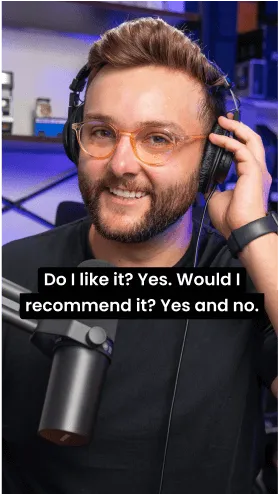
Smiling person wearing headphones sitting at a desk with a keyboard and microphone, with text saying 'Happy to be here!'Smiling man with glasses and a beard wearing headphones and speaking into a microphone with text overlay about liking and recommending something.

Cap it all in one place.

Speed up your post-work, and get your content ready in a few clicks.

Transcribe it.

99% accuracy guaranteed and more than 100 languages supported with the most advanced AI transcriber out there.

Get Started
Split-screen with two men smiling; left man wearing headphones and glasses, right man in front of window, text overlay reads "It's literally word for word what I was thinking!"

Design it.

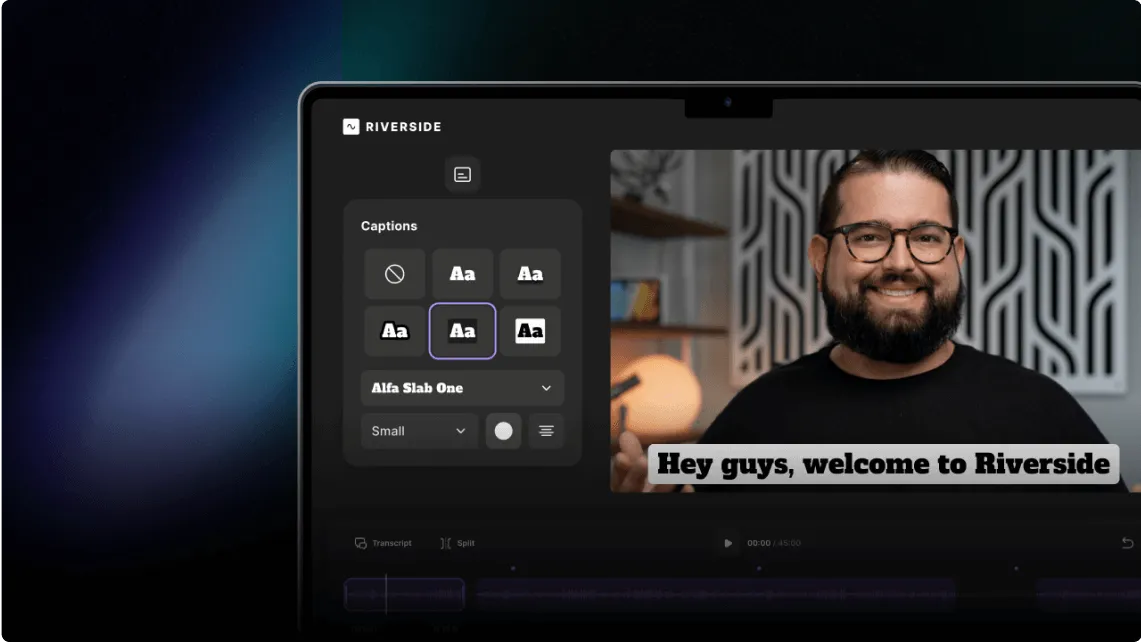
Pick a style, font, and color to make your captions on brand. Next, choose where to place them, how to align, and what animation will make it pop

Get Started
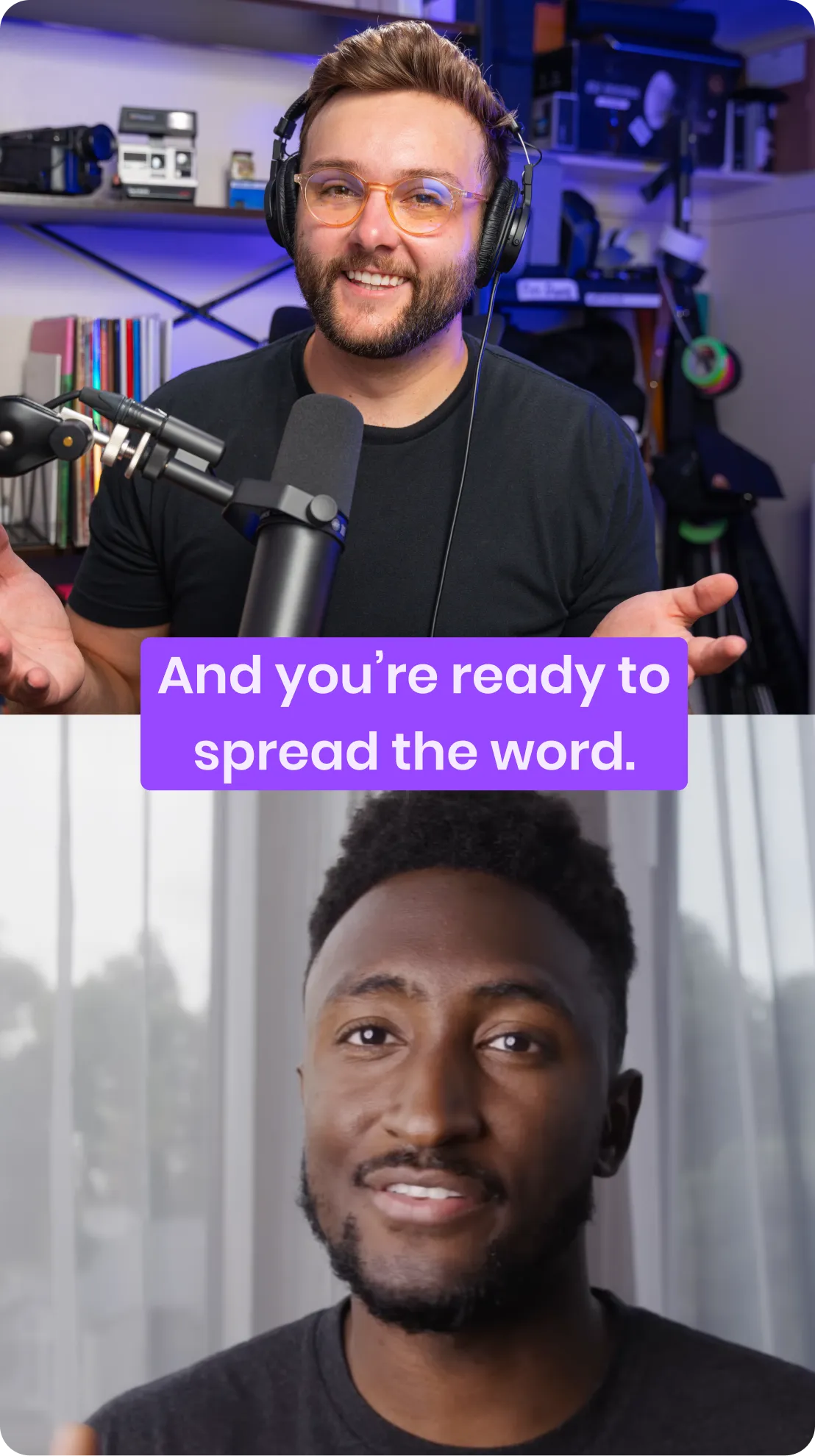
Two men communicating virtually; one wearing headphones with a microphone, the other speaking in front of a window, with text reading 'And you're ready to spread the word.'

Share it.

Repurpose your content for any platform - including reels,TikTok, and shorts - by switching between layouts with one click.

Get Started
Two men smiling during a video recording: the top man wearing glasses and headphones speaking into a microphone, the bottom man in front of a window with sheer curtains.Split-screen showing two men smiling; the left man wears glasses and headphones with a microphone, the right man is in front of a window with curtains.

Transcribe it.

99% accuracy guaranteed and
more than 100 languages supported with the most advanced AI transcriber out there.

Design it.

Pick a style, font, and color to make your captions 100% on brand, then choose how to align and where to position them on screen.

How it works?

01
Record with Riverside or upload your own video
02
Click on one of the captions style to add captions
03
Try out different fonts, colors, and styles until you're happy
Captions
walkthrough
Screen showing a video editing interface with a bearded man smiling and a caption that reads 'Hey guys, welcome to Riverside.'

Frequently Asked Questions

Do I have to add captions or subtitles to my video?

You don’t have to do anything. But it’s a good idea to add captions for your audience and content's sake. Captions increase engagement and attract audiences who are hard of hearing or those who prefer to watch content with the sound off. Plus, search engines use closed captions to categorize and rank your content. By including relevant keywords, you can target your audience better.

How do I add captions or subtitles to a video?

With Riverside, of course. Riverside automatically generates a transcript of your recording. All you have to do is click on the captions icon (inside the Editor) and choose one of the five styles available. Doing this adds captions to the video instantly. Then, you can choose a font, font size, color, the type of alignment you prefer, and where on the screen you want captions to appear (bottom, top, etc.).

To be fair, there are more ways to add captions other than with Riverside. Check out our full guide on adding captions to videos for a full recap.

What’s the difference between captions and subtitles?

We have an entire article on captions vs. subtitles.

But, in short, they both display audio as written text, generally at the bottom of a video screen. The difference is that subtitles only convey audible dialogue, while captions include dialogue and other sounds, such as laughter or a door shutting.

People got used to calling subtitles in the same language as the audio - captions, which led to some confusion. This explains why most people also refer to social media subtitles as captions. Riverside follows this as well.

What’s the difference between closed and open captions? Which is better for my video?

First, rest assured that both make your content more accessible and watchable. It all depends on what you want to do with your video.

Open captions are ‘burned’ onto your video file and work best for social media. They’re always on display and help increase your engagement. Many people scroll through social media without sound on, so including open captions makes it more likely they’ll watch through your content.

With closed captions, you’d upload a ‘side-car’ transcript file separate from your actual video. Viewers can then turn on or off captions at their preference. Closed captions help content rank higher in search results because search engines can access and analyze them to categorize your content. Note that you’ll need a compatible platform to add closed captions.

To help you make an informed decision, read more in our guide on closed vs. open captions.

How do I add captions or subtitles to Instagram Reels, YouTube Shorts, and TikTok videos?

All of these platforms have an auto-caption feature that works similarly. We have complete guides on captioning with TikTok, YouTube & Instagram.

While their built-in tools are simple to use if you’re recording in the app, they’re not the most accurate. This is especially true for languages other than English, regional accents, and English dialects. So, we’d suggest using a dedicated transcription tool.

With Riverside, you can transcribe your videos straight after recording, all in one place. Doing so spares you from having to do it separately on every platform you upload to, ensuring that you’re consistent throughout the social realm.

Can I add captions or subtitles to an existing video?

Sure! Once you upload a file to Riverside, you can use the Editor to caption your video and then style it as you wish.

If you’d like to add captions or subtitles to a video published online that’s not yours, you may be able to turn on closed captions. Look for a CC button, or check out the platform's settings.

It's all part of the workflow.

Record

Raw, studio-quality, separated tracks.

Edit

Text-based editing & AI tools.

Share

Click to export and publish.

Start creating with Riverside

Turn your best ideas into your best content yet.
Get started today