






Key takeaways:
- A live webinar is a real-time online event where a host presents to a live audience.
- Live webinars provide a more authentic and engaging experience than pre-recorded or simulive sessions.
- You can use live webinars for educational training, lead generation, thought leadership, and customer onboarding.
Live webinars offer a potent blend of real-time interaction, engagement, and authenticity that pre-recorded content simply doesn’t match.
And hosting one is much easier than you might think.
In this guide, you’ll learn exactly what a live webinar is, its key benefits, and how you can successfully host your own step by step.
What is a live webinar?
A live webinar is a real-time online event where a host presents to a live audience. The event may also be livestreamed to a social media platform.
Unlike pre-recorded content, a live webinar lets presenters respond in the moment, and attendees can interact as the session unfolds. They can ask questions in the chat, respond to polls, join the Q&A, and in some cases, speak on mic or appear on camera. That real-time conversation is what makes live webinars feel more engaging, personal, and immediate.
Types of live webinars
Depending on your goals, you can choose from several live webinar formats. Here are a few examples:
- Educational or training webinars: Teach your audience a new skill or concept. These range from expert deep-dives and university courses to practical product demos and workshops.
- Q&A webinars: Interactive sessions where you build trust by answering your audience's most pressing questions in real time.
- Lead generation webinars: Attract potential customers by offering actionable solutions to specific problems, then use the session to convert qualified leads.
- Thought leadership webinars: These dive into broader concepts, trends, and big ideas. You share unique perspectives on relevant topics to position yourself as an industry expert.
- Customer onboarding webinars: Guide new users through your product's core workflows. You can walk them through the platform and show them the most helpful and underappreciated features.
Read more: Check our best webinar examples for inspiration.
What are the benefits of live webinars?
Here are a few compelling reasons to host live webinars:
More engagement and authenticity
Your audience can actively participate by asking questions, joining the chat, or even speaking live on-screen. Live content feels more natural than edited and over-rehearsed presentations.
More topical relevance
A live format ensures you’re always sharing the most current, relevant information with your target audience. Unlike on-demand videos, it never goes out of date.
Stronger trust and credibility
Showing up live helps prove your expertise. When you answer questions on the spot and interact confidently, you build a deeper level of trust with your audience.
Immediate feedback
You can read the room and adjust your presentation on the fly to improve retention. If participants ask questions or express confusion, you get instant feedback and can clarify your points immediately.
Better attendance
A live event creates a sense of urgency. When a webinar is held at a specific time, people are 11% more likely to show up than with an on-demand recording.
How to host a live webinar: Step-by-step guide
Next, we’ll look at how to host your live webinar. Before proceeding, you’ll need to determine your webinar topic, formatting, etc. For a more detailed overview of that part, read our guide on how to create a live webinar.
Assuming you’ve completed your initial planning, here’s a step-by-step tutorial of how to set up and host your webinar.
Step 1: Set up your equipment and software
To host a successful and professional live webinar, you need reliable gear, such as:
- A stable internet connection that doesn’t make you look all choppy and pixelated during the whole webinar.
- A modern desktop computer or laptop.
- Headphones to monitor audio and reduce echo during the session.
- A dedicated external microphone to make your webinar sound professional.
- A high-resolution camera or webcam to ensure your video looks crisp and professional.
- Webinar software to stream your event online. Look for software like Riverside that offers an easy setup, has various audience engagement tools, and enough capacity to host your audience.
Moving forward with this example, we’re going to use Riverside to host your webinar.
Step 2: Scheduling your webinar
Start by scheduling your session and sending an invite to all your attendees, guests, and producers.
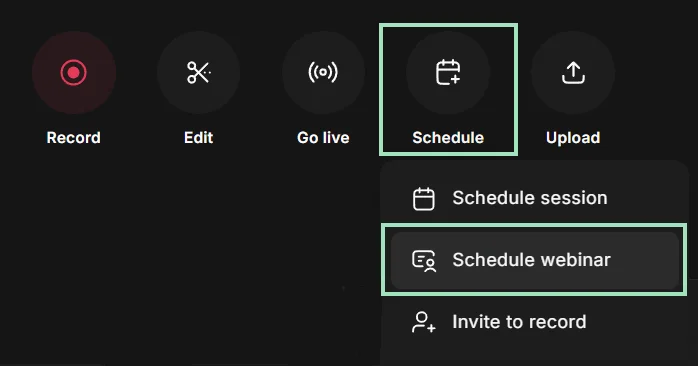
From your dashboard, just click on the “Schedule” button, then choose “Schedule webinar” to plan your live session.
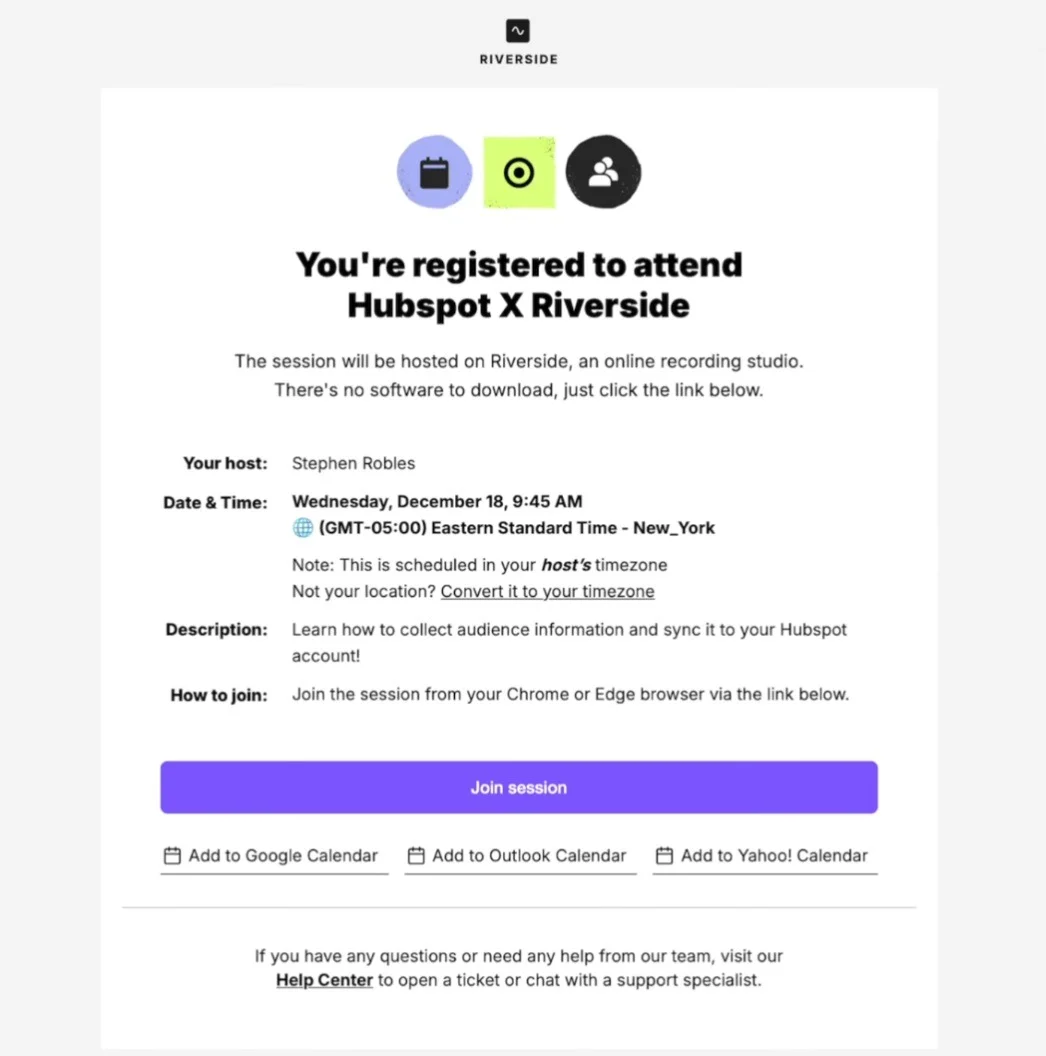
Riverside will send a confirmation email with a unique join link, calendar links, and optional reminder emails before the session to up to 10,000 registrants.
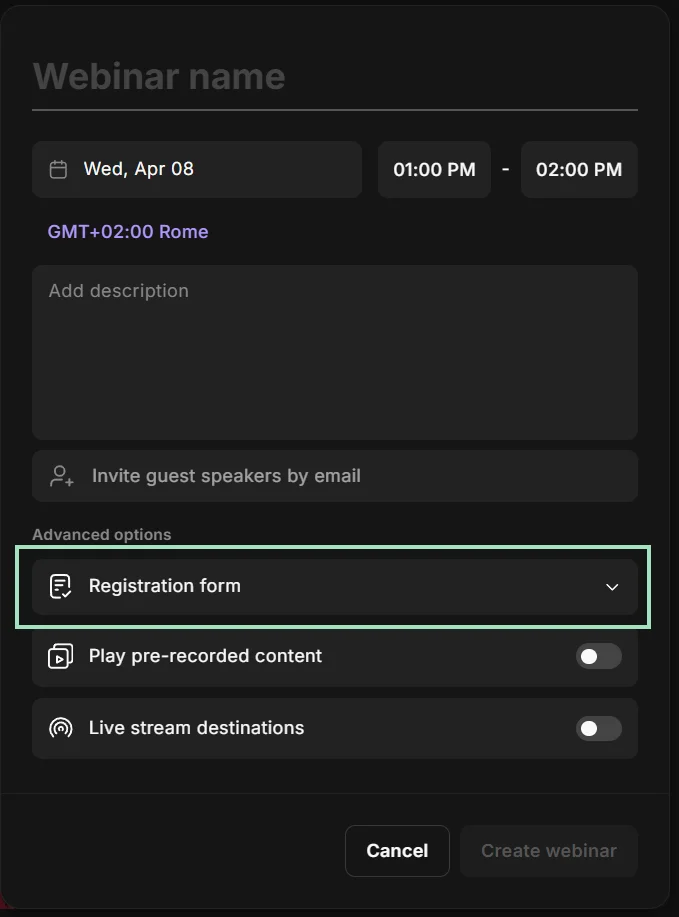
Optionally, you can also create a custom registration flow to collect attendee details before the event by clicking on the “Registration form” button.
Step 3: Prepare your webinar
Once the session is scheduled, it’s time to outline, script, and structure the webinar.
Before starting the webinar, you should understand your target audience. Conduct surveys, reach out on emails, or research your competitors, then brainstorm a topic that aligns with your audience’s interests.
Once you’ve determined the best angle for your event, create a structured webinar outline to keep it focused and on track.
Step 4: Set up your studio
With Riverside, you can use colorful, catchy lower thirds to engage your attendees. Use them to embed hyperlinks, present your co-hosts and guests, and highlight key information.
To add and customize lower thirds, click on the “Text” icon on the right-hand sidebar and then on the plus “+” icon.
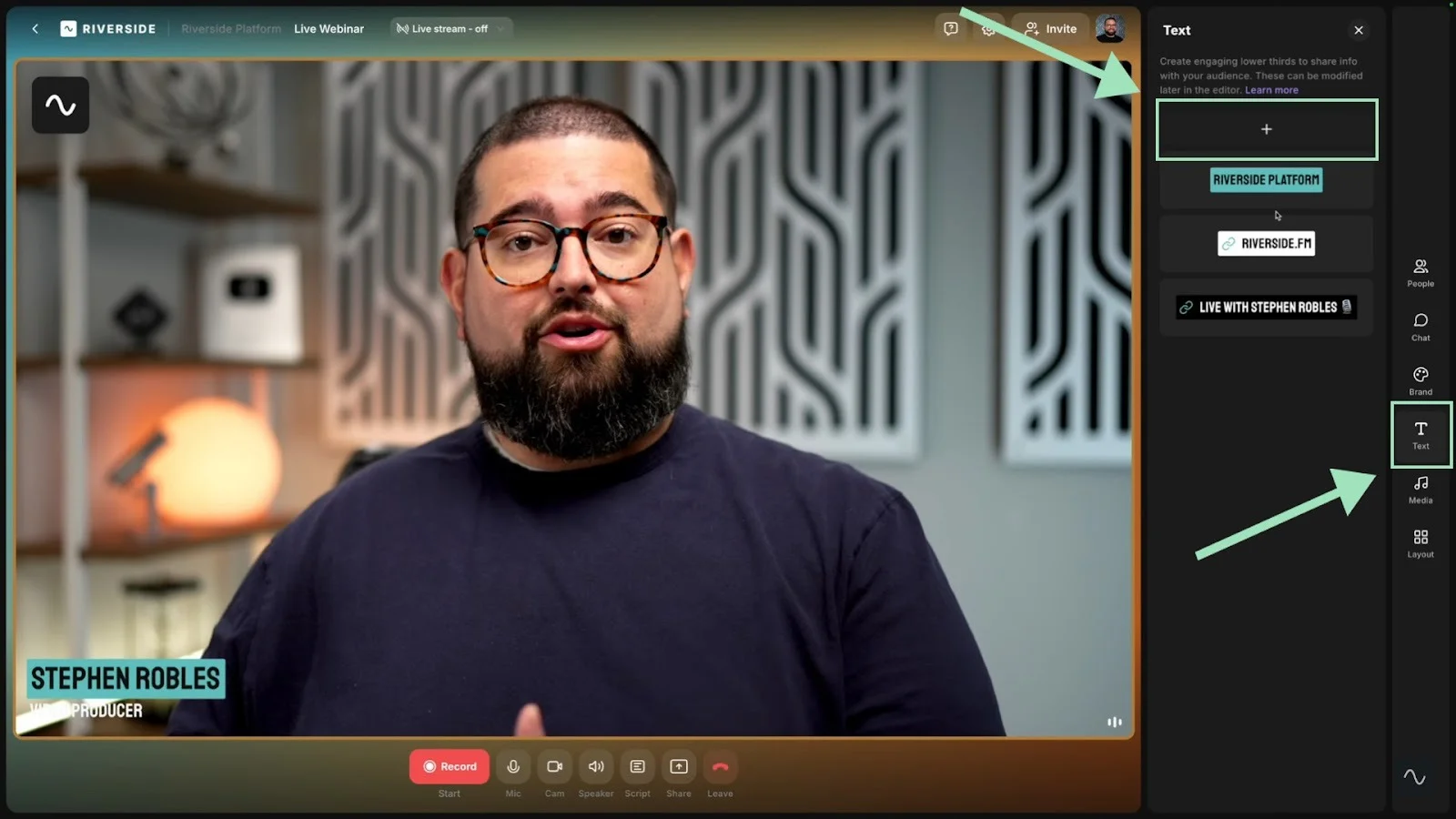
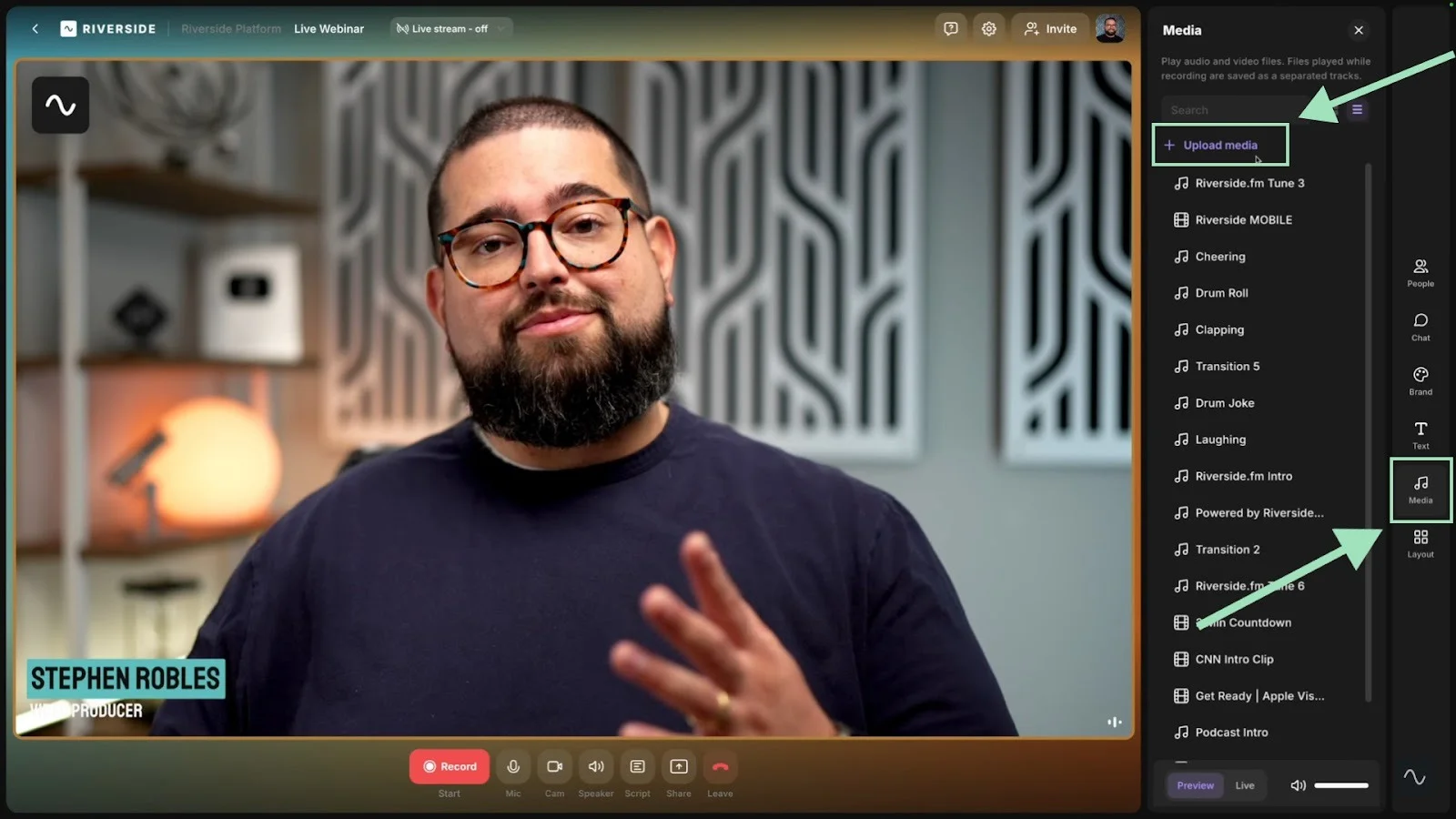
You can also add videos, images, sound effects, intro music, and more with the media board by clicking the “Media” button on the right-hand sidebar.
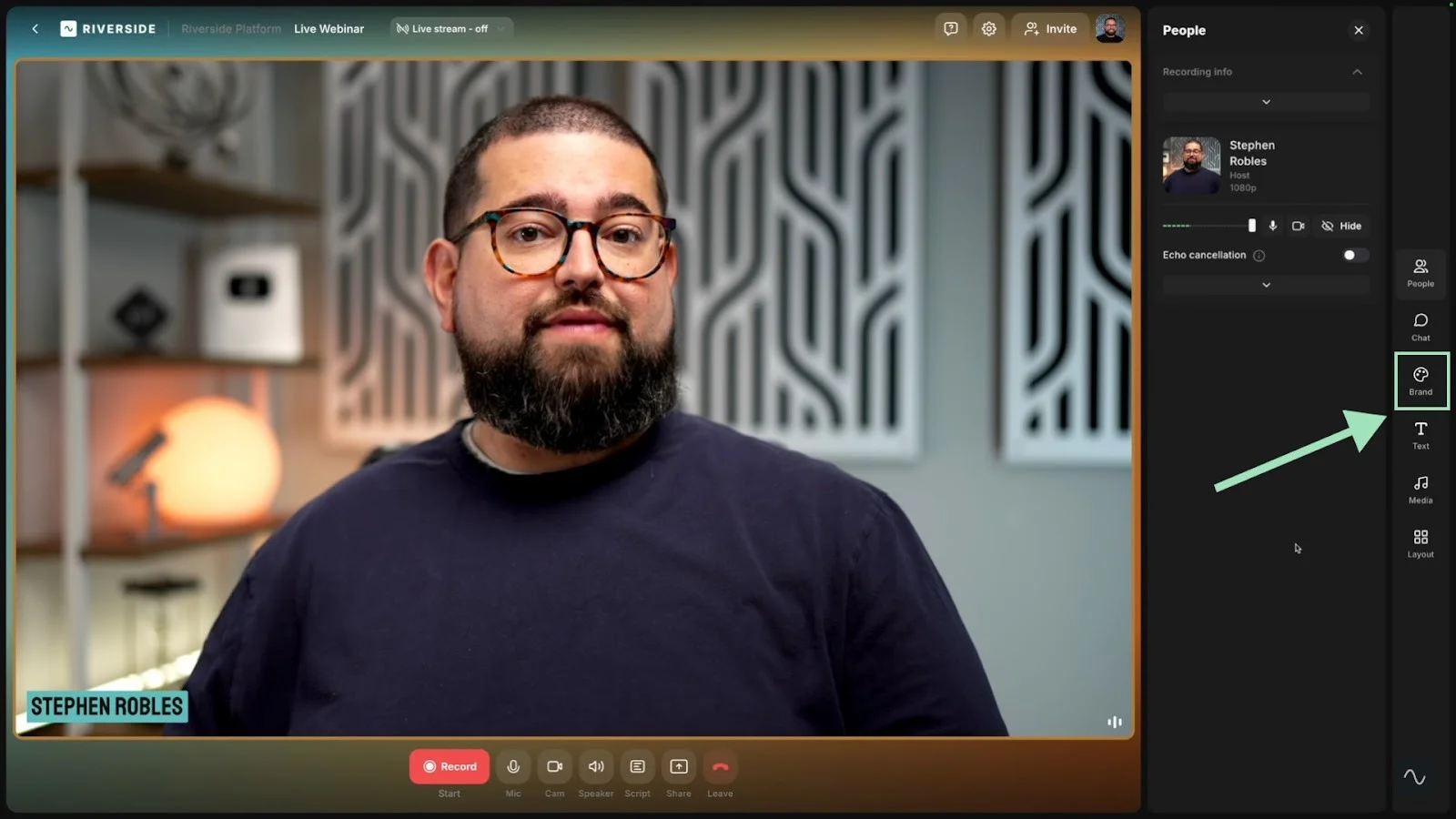
Make your show look unique using your brand color and background, and apply this branding scheme to the studio lobby.
Step 5: Host your webinar
Riverside lets you multistream to all your social channels and custom RTMPs simultaneously.
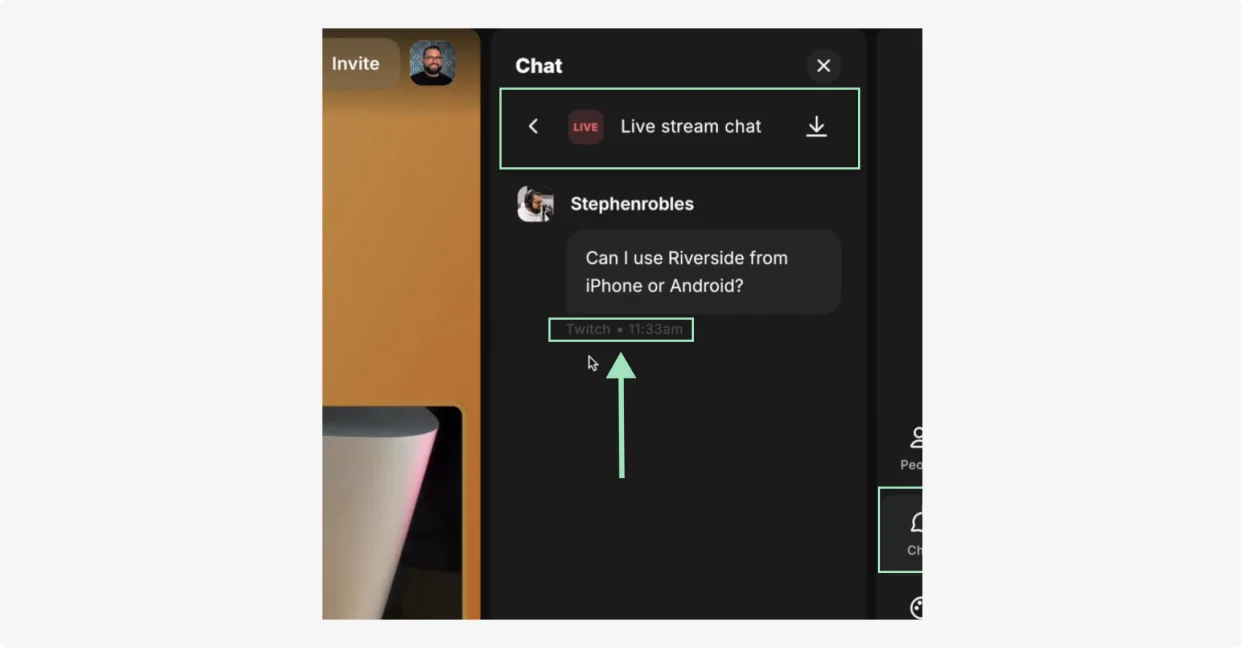
You can also chat with all your audiences on YouTube, Facebook, Twitch, and TikTok at the same time with OmniChat.
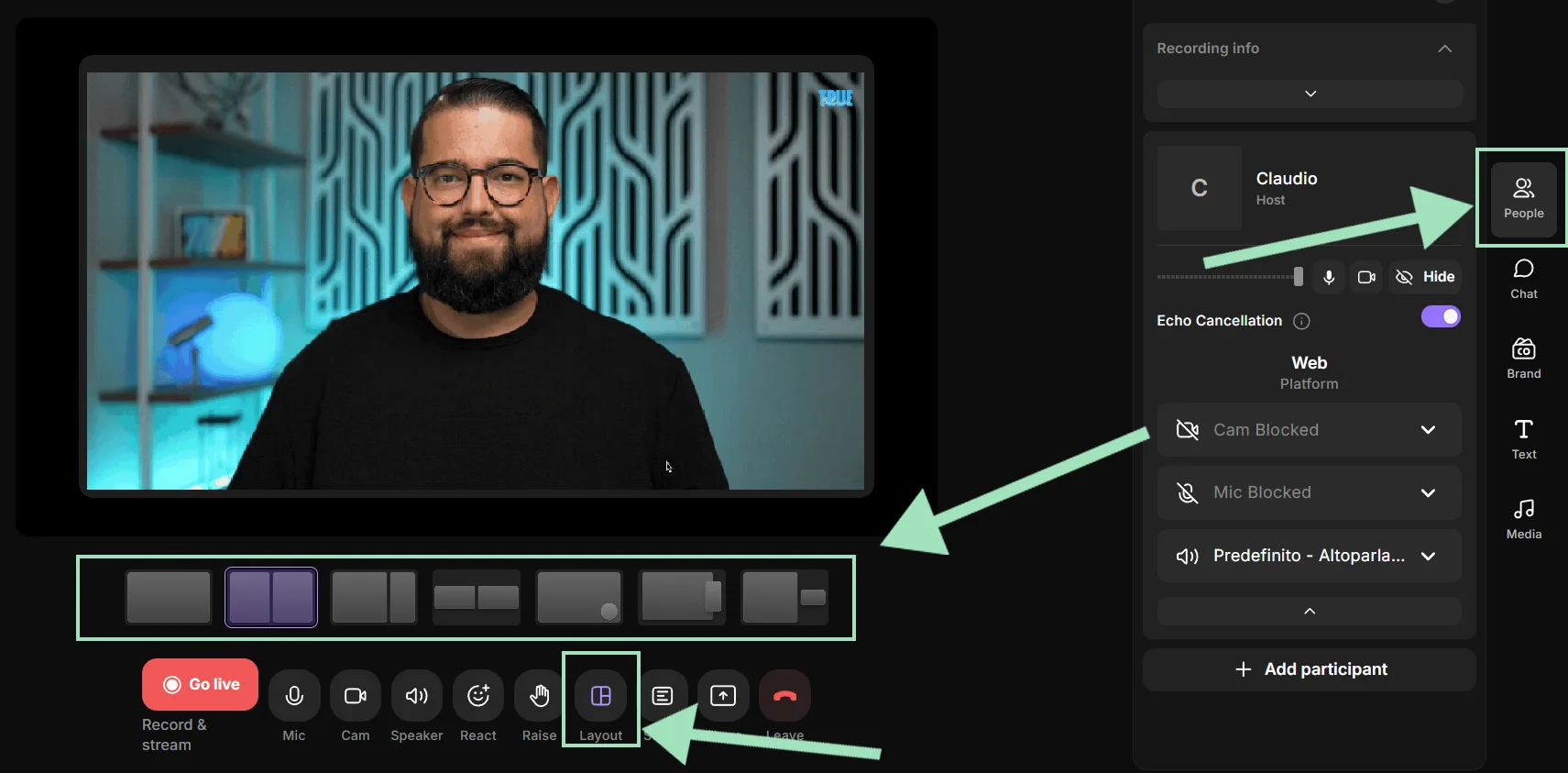
Riverside can even choose your layout dynamically based on who is presenting. Click the “People” button from the right-hand sidebar, then select the layout you prefer from the “Layout” sub-menu.
Your audience can also join your live webinar by just clicking “Request a live call-in.”
.webp)
Lastly, if you share your screen, it will save to a separate recording track, giving you more control during post-production.
Step 6 (optional): Edit and repurpose your webinar
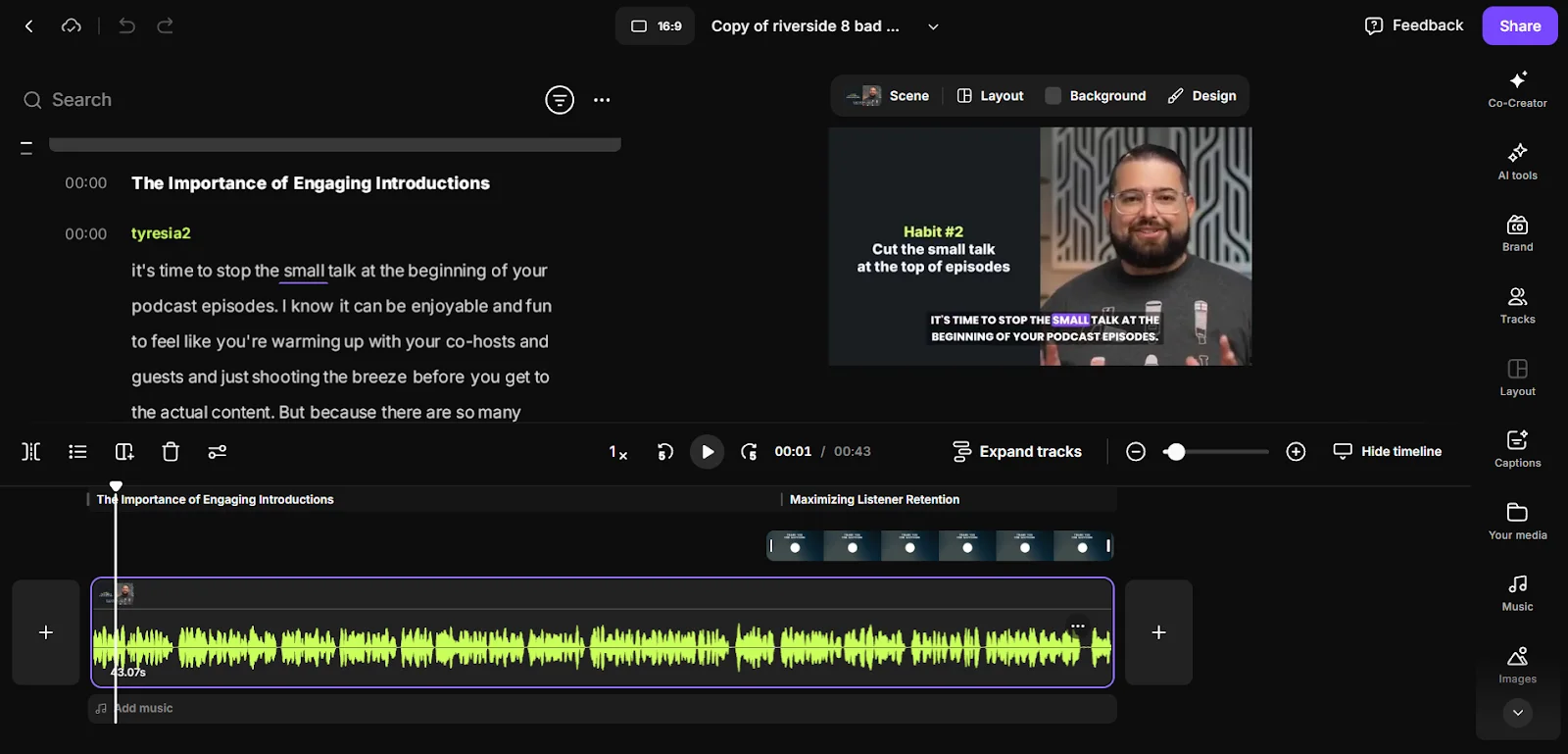
Once the live webinar ends, you can turn a session into a full content calendar with Riverside.
Riverside captures your livestream locally in up to 4K, so even if your connection dropped during the live session, the quality of your recording will be unaffected.
You can quickly edit and polish your recording with AI tools. Cut and trim the video with our text-based editor, add dynamic captions, and enhance audio with just a few clicks.
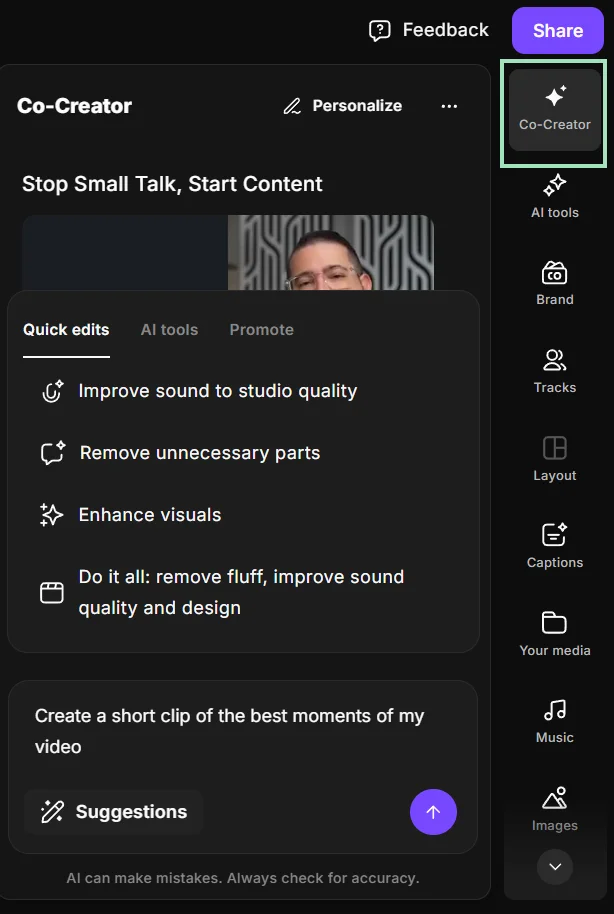
You can also chat with Co-Creator to repurpose your content into blog articles, newsletter emails, social posts, and short clips of your webinar’s best moments.
Best practices for hosting a successful live webinar
Here are a few best practices to keep people engaged, and pitfalls to avoid boring them to tears:
Focus your webinar topic
- Do: Address a specific problem or a clear goal your audience cares about.
- Don’t: Pick a topic so broad that the session feels vague or unfocused.
Test everything before you go live
- Do: With live webinars, you have only one try. Test your internet and equipment, and run a quick rehearsal before the session.
- Don’t: Treat the technical side as an afterthought. Small issues can quickly derail your entire presentation.
Lead with your session’s value
- Do: Open by telling attendees what they’ll learn, why it matters, and what to expect from the session.
- Don’t: Spend too long on introductions or speak continuously without giving your audience a chance to interact or ask questions.
End with a clear next step
- Do: Finish with a clear call to action that tells attendees what to do next. If you want them to book a demo or download a resource, that's the right time.
- Don’t: End abruptly or skip follow-up after the webinar. Always reach out to your attendees after the event ends.
Hold on to your audience’s attention
- Do: Divide the webinar into clear segments and use visual aids like images, graphs, infographics, and videos.
- Don’t: Bore your audience to sleep with humongous walls of text. Keep your slides short and on point.
Promote your webinar before and after the event
- Do: Build momentum by promoting your webinar before the event, then repurpose your live recording with Riverside to maximize its value. You can use Magic Clips to generate short-form clips, or Co-Creator to repurpose the recording into written content to promote on social media and in email newsletters.
- Don't: Be overly salesy or spam your audience with constant promotional messages.
FAQs about live webinars
Here are answers to some of the most commonly asked questions about live webinars.
How do live webinars differ from other webinar formats?
- On-demand webinars: These are entirely pre-recorded sessions. Viewers can watch them at their convenience, but there is zero real-time interaction.
- Automated webinars: These run on a set schedule to simulate a live event. The presentation is pre-recorded, and any chat functions are usually simulated or delayed.
- Simulive webinars: This is a hybrid format. The presentation is pre-recorded and plays automatically, but the host sits in the live chat to answer questions in real time.
Can people see you in a live webinar?
Yes, if you are a host, guest, or moderator, people can see you in a live webinar if you turn your camera on.
Attendees, instead, usually cannot see each other unless they are actively invited on screen with a live call-in.
What is the difference between a webinar and a live stream?
A live webinar is usually a more structured and interactive event than a live stream.
Webinars are designed for presentations, training, demos, or Q&A, and often include features like registration, polls, screen shares, and audience questions. A live stream is typically a broader, one-to-many broadcast on social media platforms focused on passive viewing.
Are live webinars really live?
Yes, all live webinars happen in real-time and can be streamed on multiple social media platforms at once (if your webinar platform supports multistreaming). Hosts and presenters can interact with the audience through Q&As, polls, and chat.
How long should a live webinar be?
A live webinar should generally be between 30 to 60 minutes. That is usually long enough to teach something useful, hold audience attention, and answer questions without making the session feel dragged out. A standard format is 20 to 45 minutes of core presentation followed by a 10- to 15-minute live Q&A session.
What is the best time to do a live webinar?
The best time to air your webinar is midweek between 10:00 AM and 2:00 PM. If your audience is global, it’s better to schedule at a time suitable for people in most time zones or around your largest audience segment.
Log in at least 15-30 minutes before the beginning of the webinar to resolve any last-minute technical issues, and offer a replay after the live session.



.webp)
.webp)
.webp)


