






Key takeaways:
- Using Continuity Camera is the easiest way to turn your iPhone into a webcam on Mac.
- If you're on Windows, try using software like Riverside to connect your iPhone as a webcam.
- Make sure you meet software requirements. (For requirements you'll need macOS Ventura 13.0 or newer and iOS 16 or later).
Using your iPhone as a webcam means using one of the best high-quality cameras on the market.
If you’ve already spent a big amount on a great phone like the iPhone 17, why drain your wallet even more for a professional camera?
Without further ado, let’s dive into the steps to set up your iPhone as a camera on your Mac or PC.
How to use your iPhone as a webcam with Continuity Camera
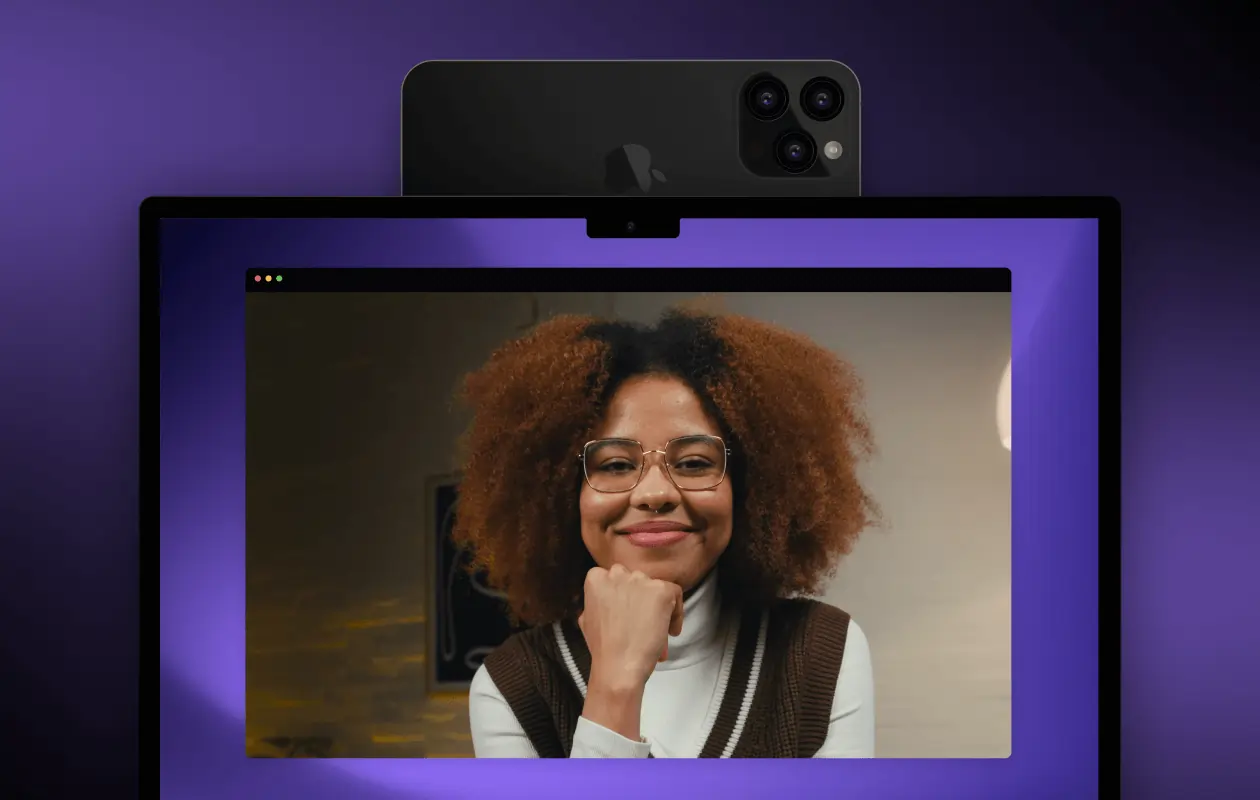
Continuity Camera is a built-in feature that allows you to use your iPhone as a webcam on a Mac. With it, you can take full advantage of your phone’s high-res, high-quality camera and microphone.
If you don’t want to use any third-party software, Continuity Camera is the simplest way to use your iPhone as a webcam. You just need to meet the requirements (below).
Before you proceed, understand that Continuity Camera is capped at 1080p. So, if you’re looking for 4K recordings, you're better off using another platform, like Riverside.

Requirements
To use Continuity Camera, you’ll need:
- A Mac running macOS Ventura 13.0 or newer.
- An unlocked iPhone with iOS 16 or later (all iPhone models introduced from 2018 onwards).
- Wi-Fi and Bluetooth turned on for both devices.
Alternatively, you can also connect your iPhone to your computer via USB.
In addition, consider using a phone mount, a tripod, or even just a stack of books to support your iPhone.
Note: Some features, such as Center Stage, Desk View, and Studio Light, are available only from certain models onward (like the iPhone 11 or 12 and later).
Setup instructions
Setting up Continuity Camera is a very straightforward process:
Step 1: Make sure that both your iPhone and Mac are connected to the same Wi-Fi network, paired via Bluetooth, or linked with a USB cable.
Step 2: Verify that both devices are logged into the same Apple ID
Step 3: Make sure that your Continuity Camera setting is turned on.
On your iPhone, open the Settings, then click on “General” then click on “AirPlay & Handoff”
Step 4: Turn the “Continuity Camera” switch on.
Step 5: Open any application, such as FaceTime or QuickTime Player, that uses your webcam, and you’ll see your iPhone available to choose as your video input.
That’s literally all you need to do!
When your iPhone is being used as a camera, you’ll see a message indicating it’s currently in use. To turn your device back to normal, you can either click on “Disconnect” on your iPhone or close the application that was using it as a camera.
Still having issues with Continuity Camera? Check our guide on how to fix and troubleshoot the most common issues.
How to use your iPhone as a webcam on PC
Using your iPhone as a webcam on your PC isn’t much different from doing this on your Mac. The main difference is that you can’t use Continuity Camera and you'll need a third-party app.
In this example, we’ll go with Iriun. Just follow these steps:
Step 1: Go to https://www.iriun.com/ and click on “Webcam for Windows” to download and install the app on your PC.

Step 2: Return to your iPhone and download the "Iriun Webcam for PC and Mac" app.
Step 3: Make sure both your iPhone and PC are connected to the same Wi-Fi network.
Step 4: Open the app on your iPhone, follow the instructions, and click on “Let’s Go!”
Step 5: Once the app displays "Waiting for connection," also open the Iriun app on your PC and wait for the two apps to connect.
If everything worked, you’ll see the live feed from your iPhone camera!
How to use your iPhone as a webcam for recordings and online meetings
.webp)
One of Riverside's main benefits is that your phone connects directly to your recording platform. It’s beginner-friendly, reliable, and there’s no need for third-party apps.
Riverside lets you leverage your iPhone's full capabilities, with recording at up to 4K video. You’ll also get automatic, separate audio and video tracks for easier editing.
You can use Riverside on iPhone and Android, as well as on macOS and Windows PCs. This means it’s cross-compatible on all devices.
Plus, your guests don’t need to log in or create an account to connect their devices. It's all browser-based!
With Riverside, you’ll also get:
- Local recording, so audio and video quality are unaffected by your internet connection.
- Can record with up to 9 hybrid and remote guests.
- Multi webcam feature where you can add your phone as a second camera angle.
- Full-suite editor that let you apply any change by just chatting with Co-creator.
- Built-in podcasting and webinar features.
- All-in-one recording, editing, and repurposing without leaving your dashboard.
The whole process is very simple. Let’s have a look.
Requirements
Here’s how to use your iPhone as a webcam on your PC or Mac. Let’s start with the requirements:
- Download and install the Riverside iOS app.
- Make sure you are logged in with the same account on both the browser-based version of Riverside and the iPhone app.
Setup instructions
Step 1: Log into Riverside on your desktop and go to an existing studio or create a new one. (You can learn how here.)
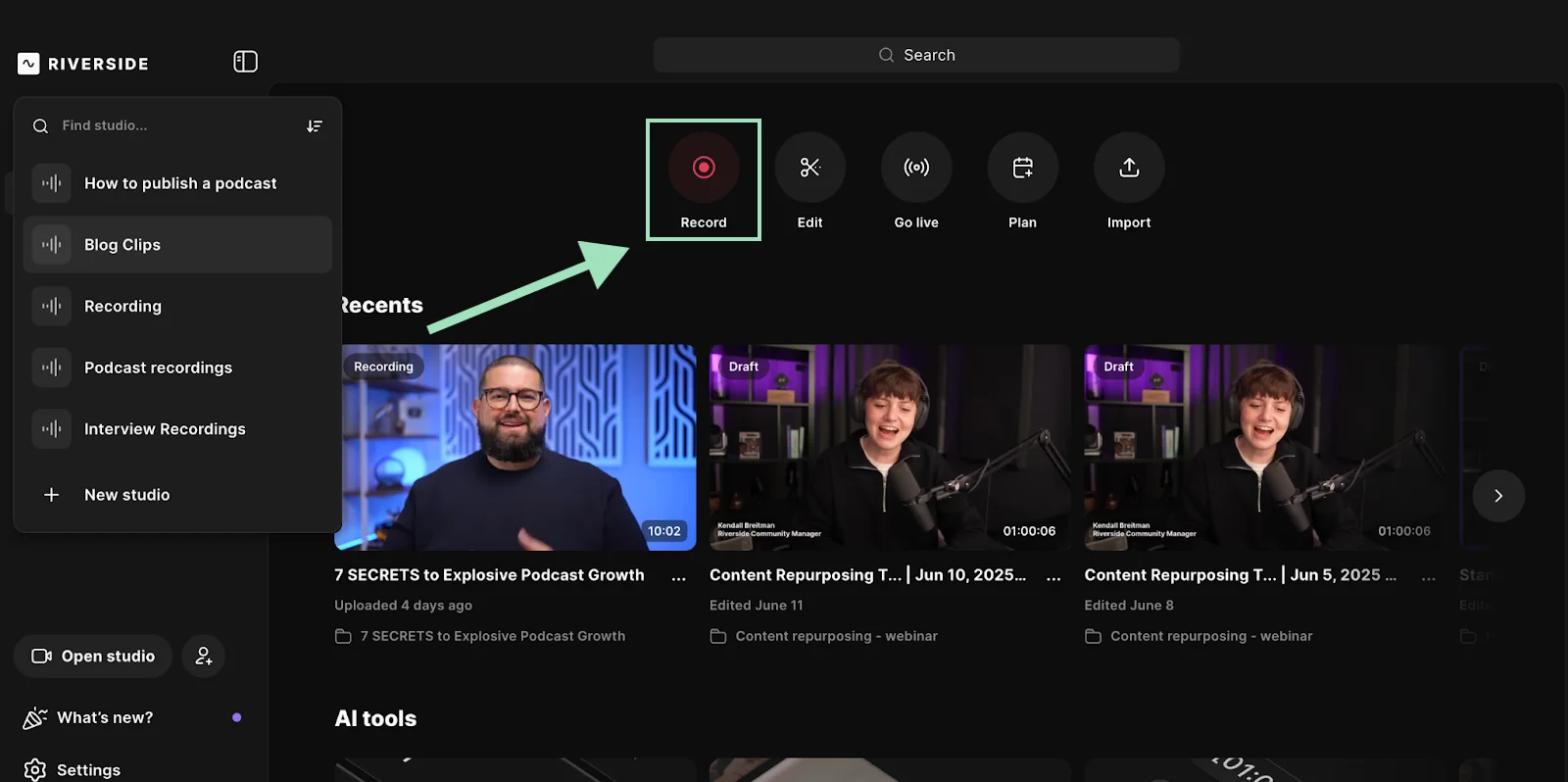
Step 2: In your studio dashboard, click on “Record” to access the lobby.
Step 3: Pick your audio input and output.
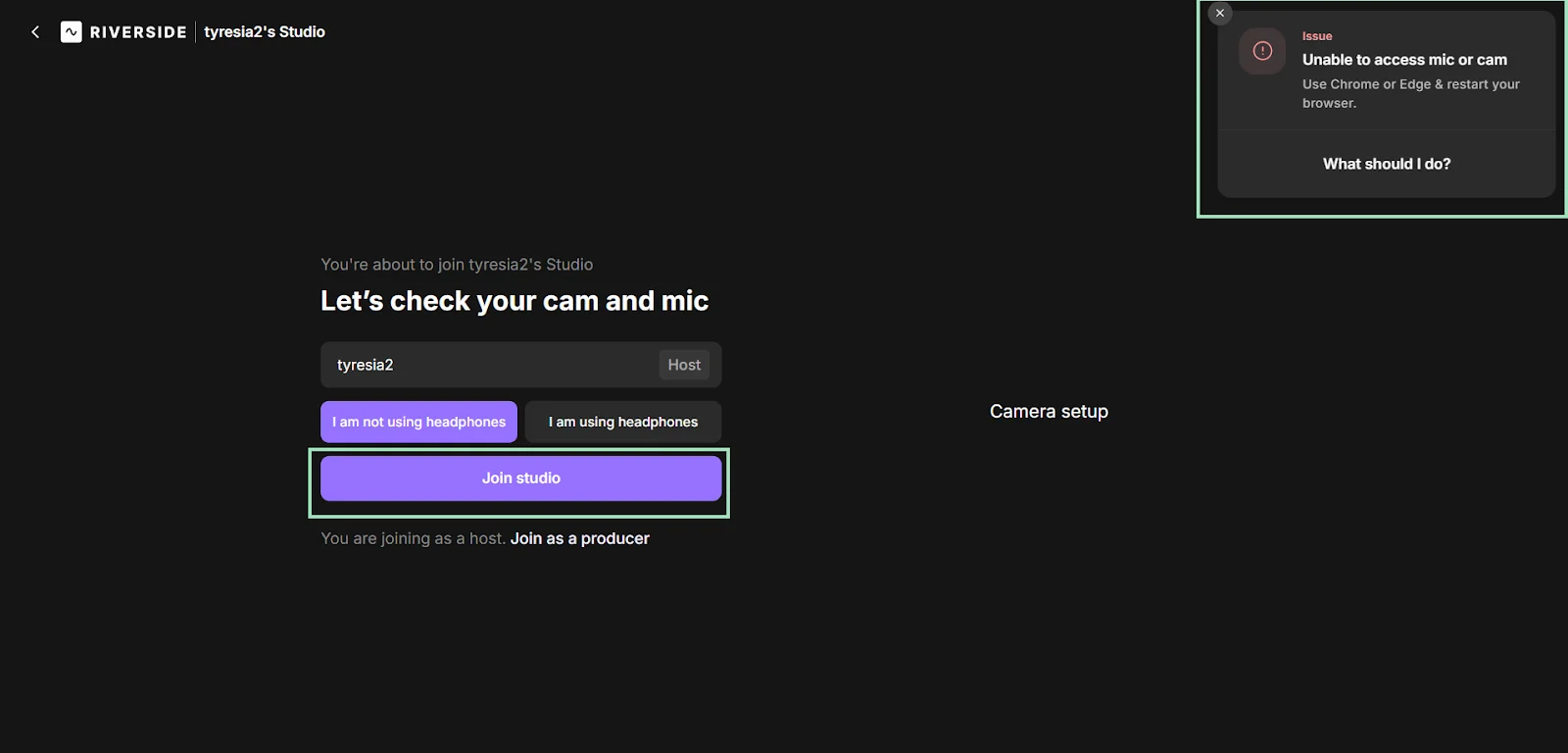
On the right-hand side of the lobby, you’ll see your video preview. You can choose a webcam here, if you want to use your iPhone as a secondary camera.
Or, if you want to use your iPhone as the sole camera, just ignore the error message and click “Join Studio”.
Step 4: Open your Riverside mobile app.
Click on the options bar on the top-left corner of the screen, then select the same studio you joined in the previous step on your computer.
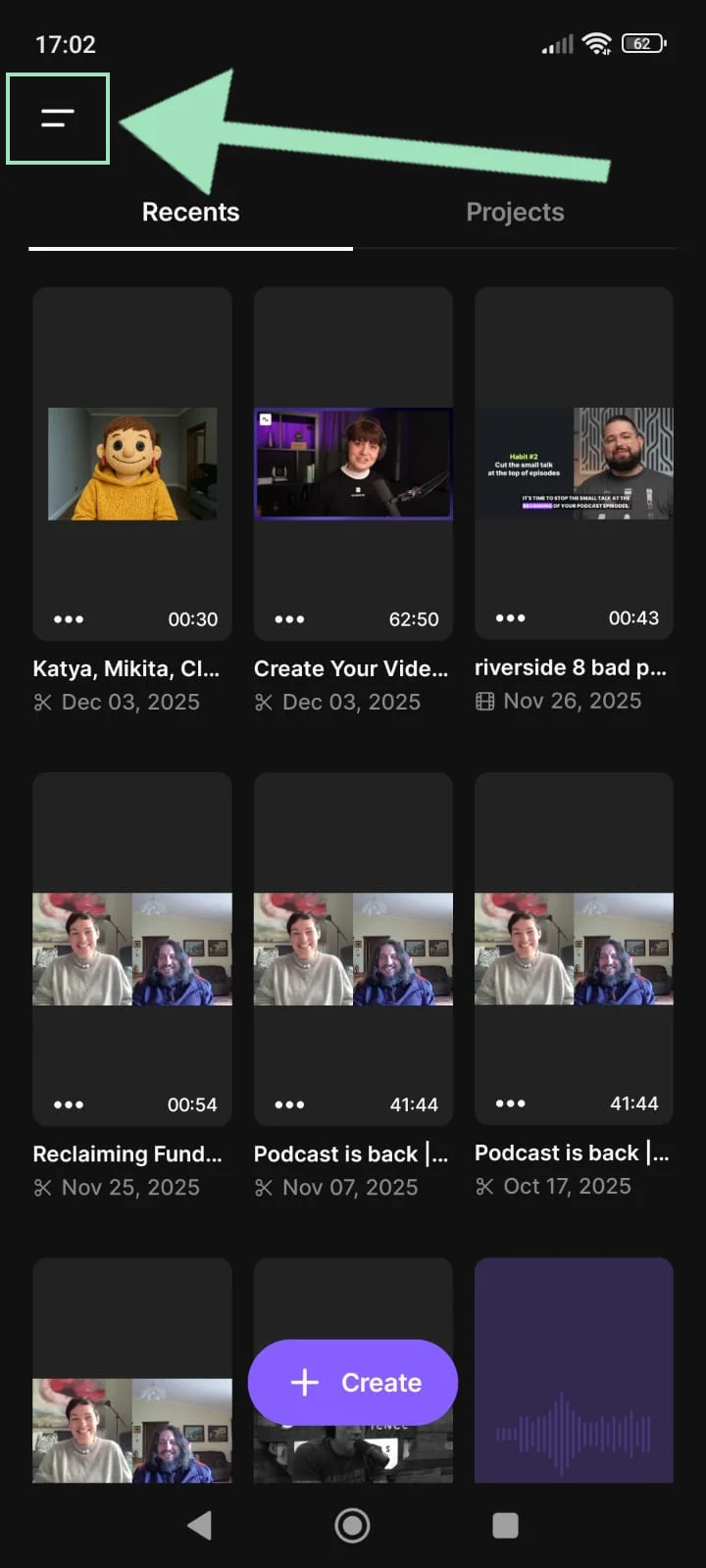
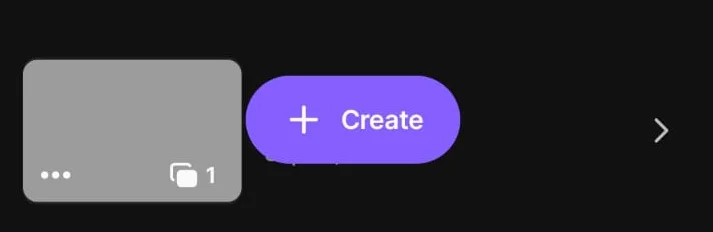
Step 5: Once you’re in your studio, tap the purple “+ Create” button at the bottom of the screen.
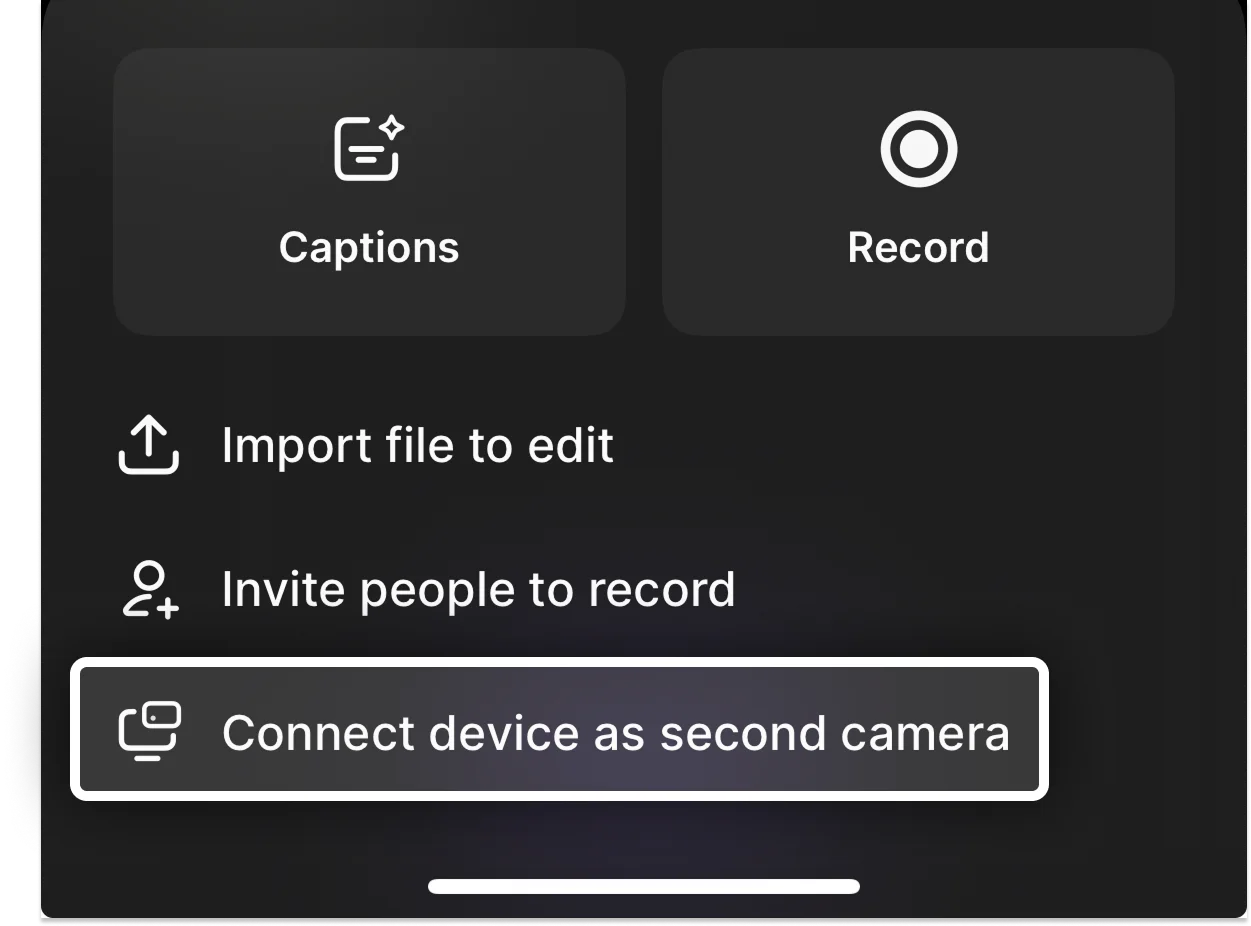
Step 6: Select “Connect device as second camera”, then “Join session.”
Step 7: On your desktop studio, click on the “People” icon, then check the right-hand panel. Your iPhone camera should now appear as “Second Camera.”
If you are on a Riverside Pro plan or higher, you'll notice how clear and crisp the image quality is while you’re recording in up to 4K resolution!
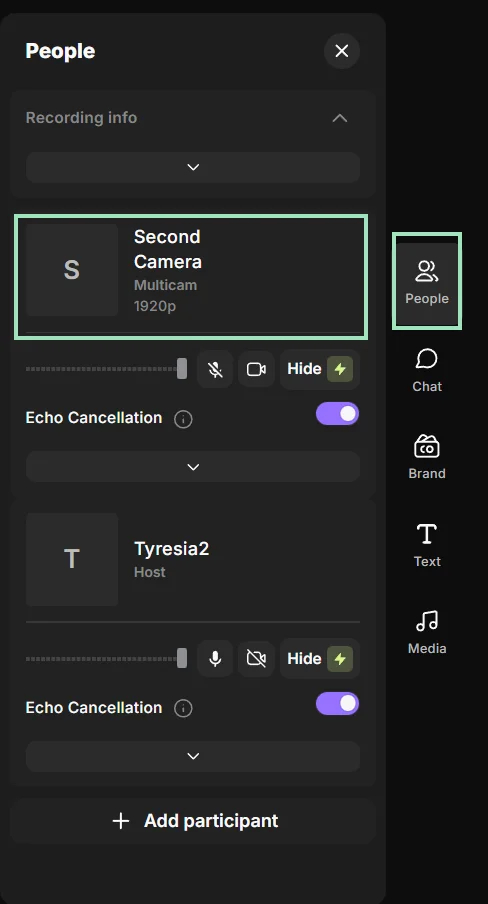
Note that you won’t see a preview of your iPhone’s camera in your studio.
Pro tip: For long recording sessions, connect your iPhone via a cable to avoid draining its battery.
How to use your iPhone as a webcam for streaming
Before you upgrade your webcam for live webinars, podcasts or Twitch streaming sessions, remember that you've already got an iPhone.
Some, like the iPhone 17, boast a fantastic 3-lens camera setup that is likely as good as any camera you might consider buying.
But, you’ll need to use dedicated streaming software, such as Riverside, to use your iPhone’s camera to its full potential.
Requirements
While you can choose from a variety of platforms, here’s how to use your iPhone as a webcam for streaming with Riverside. Let’s start with the requirements:
- A Riverside Live account or higher.
- An unlocked iPhone with iOS 16 or later.
- Wi-Fi and Bluetooth should be turned on for both devices.
- You can also connect your iPhone to your computer via USB.
- A mount like the Belkin iPhone Mount with MagSafe, a tripod, or even just a stack of books to support your iPhone.

Setup instructions
Step 1: Connect your iPhone as a webcam on Riverside. You can do that by following the instructions provided above.
Step 2: On the Lobby page of your desktop, enter your details and click “Join Studio”.
Step 3: Once you’ve created a new studio, you can send an invite link to your guests and audience by clicking on “Copy link” or by manually copying and sharing the link displayed in the middle of the screen.
Step 3: At the top of the Studio, click “Live Stream off” and then choose the icon of the social you want to stream on under “Live stream to social.”
.webp)
Step 4: Log into your social media account. Give Riverside’s authorization for the social media platform.
All your connected accounts will now show up under “Stream to social”. Make sure that the platforms you want to stream to are toggled on.
(You can also enter a title and description by clicking “Welcome to our live show!”)
You can also connect to any custom service by entering any RTMP address.
Step 5: You’re now ready to go live. Just click on the “Record” button to start recording on your Riverside Studio panel.
Note: Your recoding settings need to be set to public for this to work. You can do this by going to “General” and ensuring your “Security” setting is set to “Public” to enable live streaming.
Things to consider
To prevent any risk of your video cutting out or dropping frames during recording, you might want to avoid using a wireless connection between your iPhone and computer. Instead, connect your iPhone to the computer with a USB cable.
How to use your iPhone as a webcam for Zoom and Google Meet
Zoom and Google Meet are popular platforms because they’re very user-friendly and many people are familiar with them. They’re used for a broad range of different other uses such as webinars, interviews, and video conferencing.
However, what Zoom and Google Meet can’t do is to provide the quality and reliability required to produce stunning content. Additionally, each participant's feed isn’t recorded locally, so if the internet connection isn't stable, the result will be of even lower quality.
In the world of podcasting, Zoom and Google Meet are like bread and butter: good, but nothing extraordinary, with a maximum resolution of just 1080p.
Here’s how to use your iPhone as a webcam on Zoom and Google Meet.
Requirements
To use your iPhone as a webcam for Zoom and Google Meet you need to set up a few things first.
Please note that while Mac users can easily enable the Continuity Camera feature, things are a bit more complicated for Windows PC users as you’ll need a third party app like Iriun or EpocCam.
- An unlocked iPhone with iOS 16 or later
- Wi-Fi and Bluetooth should be turned on for both devices
- You can also connect your iPhone to your computer via USB
- A mount like the Belkin iPhone Mount with MagSafe, a tripod, or even just a stack of books to support your iPhone
- A Mac running macOS Ventura OR a third-party app like Iriun or EpocCam (Windows PC only)
Setup Iinstructions (Mac)
Step 1: Setting up your iPhone as a webcam on Zoom is really easy if you’re using a Mac. You only need to turn on your Continuity Camera feature. You can check how to do this by following the instructions we provided above.
Step 2: Open Zoom or Google Meet on your desktop, and launch a mock session.
Step 3: Access the camera settings at the bottom (Zoom) or the general settings by clicking on the three vertical dots (Google Meet). A new “iPhone camera” option should appear. Depending on your iPhone model, you might also have access to additional Continuity Camera features like Desk View or Center Stage.
Setup instructions (PC)
If you are on a Windows PC, you can’t use Continuity Camera. Therefore, you’ll need to install a third-party app like Iriun or EpocCam. In this example, we’ll go with Iriun.
Step 1: Connect your phone’s camera to your PC with Iriun following the instructions above.
Step 2: Start a mock session, then access the camera settings at the bottom (Zoom) or the general settings by clicking on the three vertical dots (Google Meet). You should see a new option labeled "Iriun camera." Click on it, and you're all set!
Zoom and Google Meet prioritize speed by compressing video and audio, making them less than ideal for podcasting. Riverside, on the other hand, prioritizes quality and can leverage your iPhone camera’s 4K resolution.
Things to Consider
If you’re struggling with Iriun, or if you're using an older iPhone or Mac that doesn't support Continuity Camera, there are other options available. Apps like EpocCam, Camo, or Shoot all work in a similar manner.
Simply install the app on both your iPhone and your PC or Mac, and then run them simultaneously. Once they're synchronized, you should be able to select your iPhone from the camera settings in Zoom or Google Meet.
If you want to know more, you can check our guide on how to use your phone as a webcam to record HD videos here.
Troubleshooting your iPhone as a webcam
If your iPhone isn’t working as a webcam, here are a few quick fixes to get you back to recording.
iPhone camera isn’t recognized by my computer
Check if your iOS version is updated to 16.0 or higher, and make sure your iPhone is unlocked.
Check that:
- Wi-Fi and Bluetooth are enabled on your PC and iPhone.
- Both devices are on the same Wi-Fi network.
- You’re signed into the same Apple ID on both devices.
Then, reconnect to refresh the connection between them.
If the camera still doesn't work, try connecting the phone to your computer with a USB cable.
Poor video quality when using your iPhone as a webcam
All it takes is just a few simple tweaks to get the best possible picture from your iPhone camera.
- Use the rear camera: The lenses on the back of your iPhone are vastly superior to the front-facing one.
- Steady your shot: Use a tripod and mount your iPhone in landscape mode for a stable and wide shot.
- Optimize lighting: Even the best camera sensors struggle in the dark. Avoid grainy footage by using a bright, diffused light in front of you (not behind).
- Close unused apps: Background processes on your phone can affect performance during your recording or stream.
- Choose the right software: Continuity Camera is capped at 1080p. If you want to unlock the full 4K potential of your iPhone’s camera, use Riverside.
Video stutters or audio is out of sync
Wireless connections can suffer from interference, so try connecting your iPhone to your computer with a high-quality USB cable. If issues persist, it may be because iPhones record in variable frame rates, which can sometimes confuse editing software. Recording directly in the Riverside app solves this, since all separate tracks are synchronized automatically.
FAQs on how to use an iPhone as a webcam
Is an iPhone a good webcam?
Yes, an iPhone can serve as a powerful webcam that can record in up to 4K resolution. Most traditional webcams use tiny sensors that struggle in dim lighting, resulting in grainy video. The iPhone’s sensor is significantly larger, allowing it to capture more light and detail.
More importantly, a webcam is just a camera, while your iPhone is a powerful portable computer. It performs millions of calculations per second to auto-adjust white balance, reduce noise, and optimize skin tones in real time. Plus, an iPhone itself is lightweight and easy to set up.
The biggest downside is that using all this computational power can quickly drain its battery and/or overheat it. Be sure to keep your iPhone plugged in during longer sessions.
How do I turn on camera access?
Go to Settings > Privacy, then click on Camera to see a list of all apps with access to your camera. To allow access for an app, simply turn on the switch next to it.
How to use your iPhone as a webcam on Windows 10 and 11?
Some apps, like Riverside, can recognize your iPhone on your Windows PC by following a simple procedure. However, if you need to use your iPhone as a webcam on platforms like Zoom or Google Meet, you might need to install a third-party app such as Iriun, EpocCam, Camo, or Shoot.
Why can't I find Continuity Camera on the App Store to install it?
You can’t find Continuity Camera on the App Store because it isn’t an app, but a built-in feature of iOS and macOS. In order to use it, you simply need to update the operating systems of your Mac and iPhone to macOS Ventura 13.0 and iOS 16 or later.





.webp)