






%20(1)%20(1).webp)


Key takeaways:
- Starting a podcast on Spotify is completely free.
- It takes only 5 easy steps to start a podcast on Spotify from scratch.
- Use the Riverside integration to create studio-quality audio or video podcasts directly on Spotify.
- If you have an existing podcast, just link your RSS feed to Spotify.
If you’re new to podcasting, getting your podcast on Spotify is a must.
But where to start?
We’ll walk you through step-by-step. You’ll learn how to upload a new or existing podcast to Spotify.
Why should I list my podcast on Spotify?
Listing your show on Spotify gives you instant access to one of the largest listening audiences. Spotify reaches more than 628 million users, making it a key place for listeners to discover new podcasts.
It’ll help you receive new traffic, boost your legitimacy and reputation, and collect data and reviews from your listeners.
But Spotify is more than just a directory. With its Riverside integration and its role as the biggest free hosting platform, it has evolved into an entire ecosystem. New updates, like polls, Q&A, and comments, even let you build a community directly on the platform, turning listeners into loyal fans.
How to start a podcast on Spotify: 5 Easy steps
Starting a podcast is surprisingly simple with Spotify and Riverside. The easiest way to do this is through Spotify for Creators (formerly known as Anchor).
Read on for a step-by-step guide on how to submit a podcast to Spotify.
1. Open a Spotify account
Go to the Spotify for Podcasters site and click “Get Started”.

Log into your account or create a new account. Simply click “Sign up for Spotify” and follow the prompts.
Note that you’ll need to agree to the terms and conditions Spotify stipulates by signing up.
After signing up, you’ll get asked whether you’re creating a new podcast or already have one. Select “I want to start a new podcast”.

2. Add your podcast on Spotify
First, you’ll actually want to set up your podcast on Spotify.
On the welcome page click on “Go to podcast setup” under “Set up your podcast”.
Here you can fill in your podcasts’:
- Name
- Description
- Category, and
- Language
When you’ve completed filling in these details, select “Continue” before moving to the next step and adding your first episode(s).
3.Record your first episode
After setting up your podcast, click “Let’s do it” under the “Add your first episode” section.

You can upload video or audio you've recorded elsewhere by clicking “Select a file”.
Or, you can create a podcast from scratch using Spotify’s Riverside integration by clicking “Go to Riverside”.
You’ll see a pop-up, click “Let’s go” and you’ll get directed to the Riverside creation tools.
Recording an audio podcast with the Spotify x Riverside integration
Log in if you have an existing account or create a new one. You’ll then have the option to record or edit an episode.
Hover over “Record episode” and then select “Record audio only”.

In the studio, you can invite others to join your recording. Click on the “copy link” button to share a link, or click “Invite by email” to send invites.
Whenever you and your guests are ready click the “Record” button to start recording. Each person’s audio will record on a separate track for easier editing afterwards.

Once you’re done recording, click “Stop” and then after everything uploads click “Start editing”.
Editing your Spotify podcast on Riverside
In the editor you can complete your episode.
The easiest way to edit is with chat-based editing. Just prompt Co-Creator, your new AI editing partner.
Click on the “Co-Creator” button on the upper right-hand corner to access it.
You can click on the suggestions, or just type a prompt like:
- “Clean up the audio”
- “Add an engaging intro hook with music”
- “Keep only the best parts”
And more.
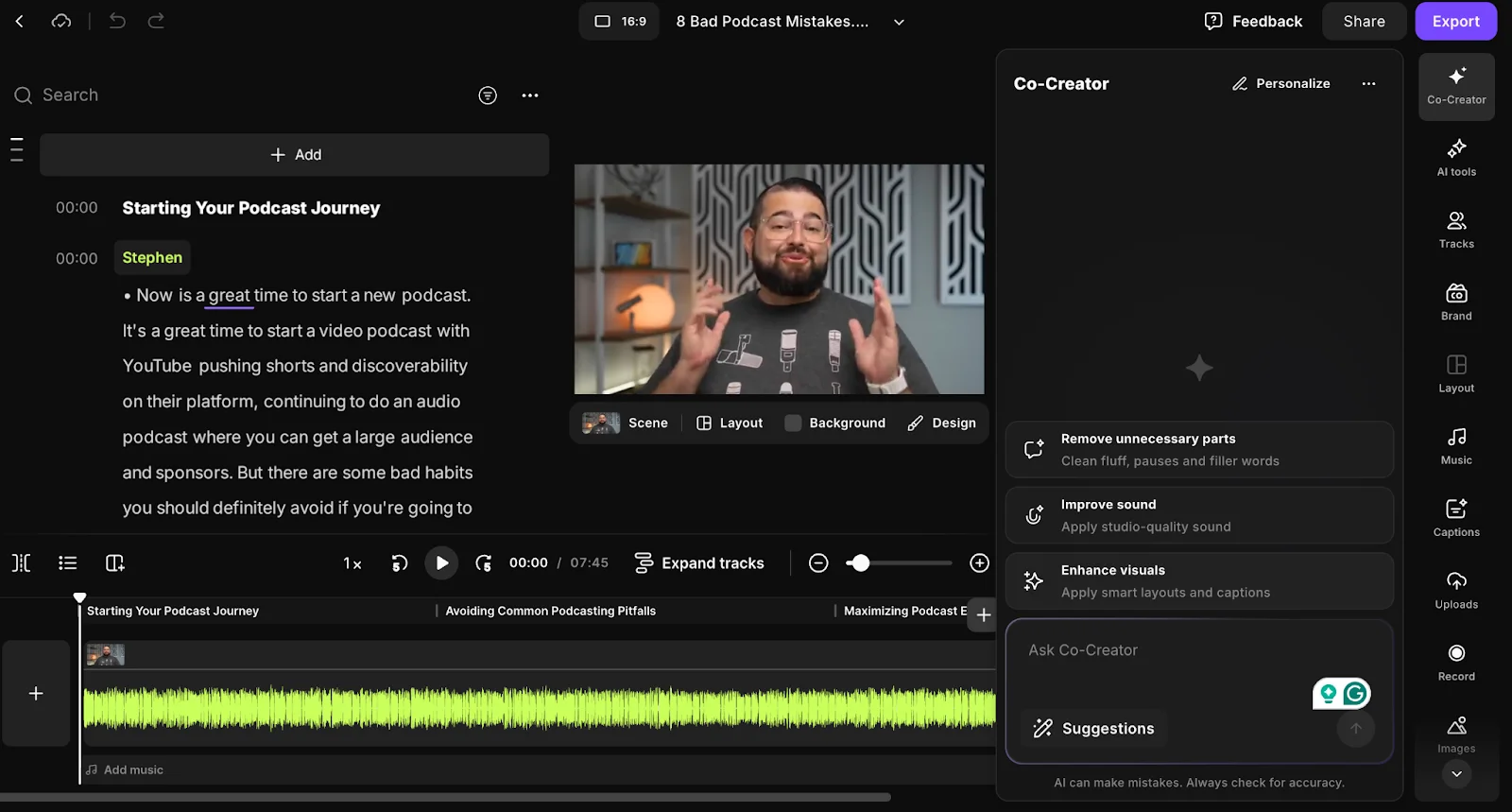
For a more hands-on experience, you can edit yourself.
Start with cutting your audio.
If you’re using text-based editing, select the transcript text of the parts you’d like to remove and then click “Delete”. You can also select the three-dotted menu and then “cut” and paste the text elsewhere to move it around.
Alternatively, edit the audio files with our traditional waveform editor. The timeline is color-coded and has chapters for easy organization. Place the cursor anywhere and click the split button on the top left of the timeline. This will create a cut. Once you’ve created clips, you can move them around freely and even upload new audio or media.
Polish your edit with the AI tools located at the top of the right toolbar.
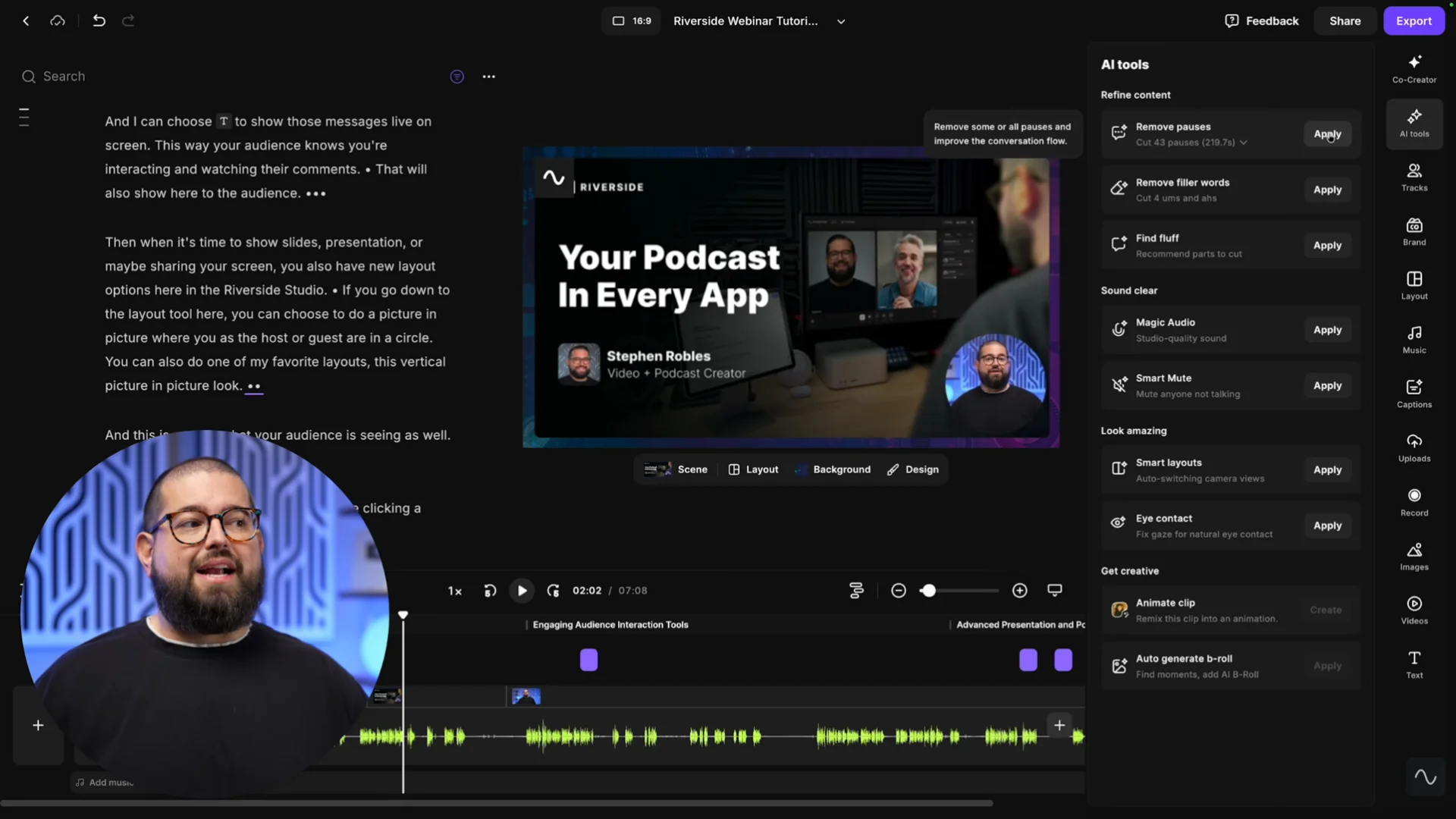
Is the conversation moving a little too slowly? Here you can set the pace of your audio with automatic silence removal. Plus, you can use Magic Audio for automatic audio enhancement that will clear background noise, and normalize audio levels.
You can also add music. Click the “Music” button on the toolbar to do this. You can select a song or upload your own, then click the “+” button to add your track. Your track will appear wherever your playhead is positioned in the timeline.
.webp)
And for the chery on top, get all your promotional assets by chatting with Co-Creator.
Open it up again, and just type a prompt like:
- “Create an episode thumbnail”
- “Generate show notes for this episode”
You can also repurpose your podcast into a blog or newsletter.
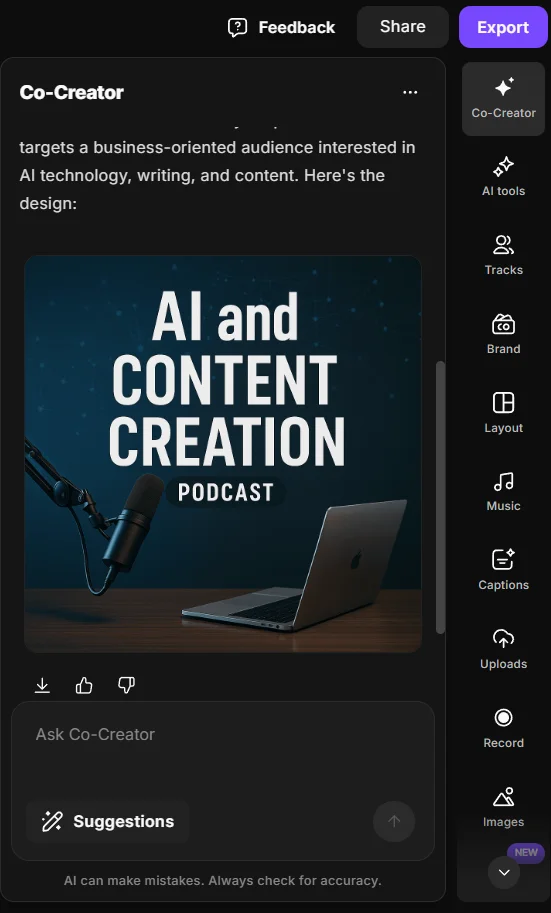
At this stage, you have a brand-new podcast episode ready to be published and distributed.
Export your Spotify podcast from Riverside
After editing, click on the “Export” button on the top right of the screen, and then click “Audio”.
Select “MP3” next to “Audio quality” as this is compatible with Spotify.
When you’ve sorted the settings click “Export audio to Spotify” and then your podcast will now automatically appear on Spotify.

Head back to Spotify for Podcasters where you can continue with filling in details before publishing.
Creating a video podcast on Spotify with Riverside
If you’re recording a video podcast, the process will be slightly different from the steps above.
You can follow this video for a full workflow or read on for the main changes.
Here’s what you’ll need to do differently:
Type of recording
After logging into Riverside from Spotify, you get prompted to choose a recording type. Instead of selecting audio only, choose video.
Hover over “Record episode” and then select “Record video & audio”.

Unlike in the audio workflow, this directs you to the lobby. Here, you’ll need to accept microphone and camera permissions and select your equipment.
.webp)
Once you’re ready, click “Join Studio” to enter the studio.
Recording studio
You’ll see your webcam input on screen.

You can also share your screen or add visual media files instead of just music. Click the “Share” button to share your screen and the “Media” button for music or visual files.
As for the rest, you can follow the same workflow for audio.
You can select:
- “Invite” to send a joining link to guests.
- “Record” and the Stop button to start or end a recording.
Editing videos
You can still use Co-Creator, the text-based editor, timeline, and audio enhancement tools. Same as with an audio recording, you can remove filler words and silences, clean up background noise, and normalize audio levels automatically.
But you’ll find more tools to customize your video, too.

The side toolbar includes:
- Captions: Add your own dynamic captions and style them as you like.
- Text and image overlays: Create lower thirds or images for more context in your podcast.
- Brand: Upload your logo or a stylish background to weave your brand aesthetic.
- Layout: Choose between a grid view or an automated speaker view.
And more!
Exporting videos
Start by clicking “Export” in the top right corner, just like you did for audio.
You’ll get a video and audio tab. In the video tab, you can choose your video quality, normalize audio levels, and remove the watermark.

When you’re done, you can select “Export video”. Then select “Go to Exports” on the pop up that appears.
Here you’ll find the exported file. Hover over it and click the “Download” button. Your podcast will automatically appear on Spotify.

Note: You can export your video as an audio file if you want to save it as an audio-only podcast as well. To do this, select the “Audio” tab, adjust settings, and export.
Expert tips: Learn from the experts and download this podcast production list from Focus and Bloom Studios.
4. Optimizing your podcast on Spotify
To improve your podcast’s visibility on Spotify complete the following steps while uploading:
- Fill in all relevant details for each podcast episode.
- Use a unique and descriptive podcast name and episode titles.
- Provide thorough descriptions and use relevant keywords where possible.
- Choose appropriate categories to help listeners find your podcast.
- Engage your audience in every episode using the new Polls and Comments features. The more people interact with your show, the more Spotify will recommend it to new listeners.
- Maintain a consistent publishing schedule to signal reliability to Spotify’s algorithm.
.webp)
If you want to further optimize your show's metadata, just follow these best practices for podcast SEO on Spotify:
- Place your primary keyword in the first 60 characters of your title, and as early as possible in your show’s description.
- Use your primary and secondary keywords naturally in your show’s description as well as episode summaries.
- Write scannable episode descriptions and show notes. Start with a hook, then include timestamps, chapters, and (even better) a full transcript.
- Choose the most relevant category/genre. Misclassification hurts discoverability.
Riverside's Show Notes lets AI do your podcast summaries, takeaways, chapters and show notes—, all in one click. So, you get the job done faster.
5. Publish and distribute your Spotify podcast
Enter the episode title, description, and other details on the displayed fields. You can choose to publish immediately or schedule for later. Specify if it’s a trailer, full episode, or bonus episode.
Click “Next.”
Enable comments or add polls to your episode if you like. Select “Next.”
Review all details and hit “Publish.
Boom! Your recording is now live on Spotify.
Read More: How to Publish a Podcast | Full Guides for Any Platform
How to upload a podcast to Spotify with Riverside’s hosting
Looking for a way to record, edit, repurpose, and host your podcast episodes all in one workflow? You can do that on Riverside.
Here’s how to streamline your publishing process on Spotify using Riverside’s built-in hosting:
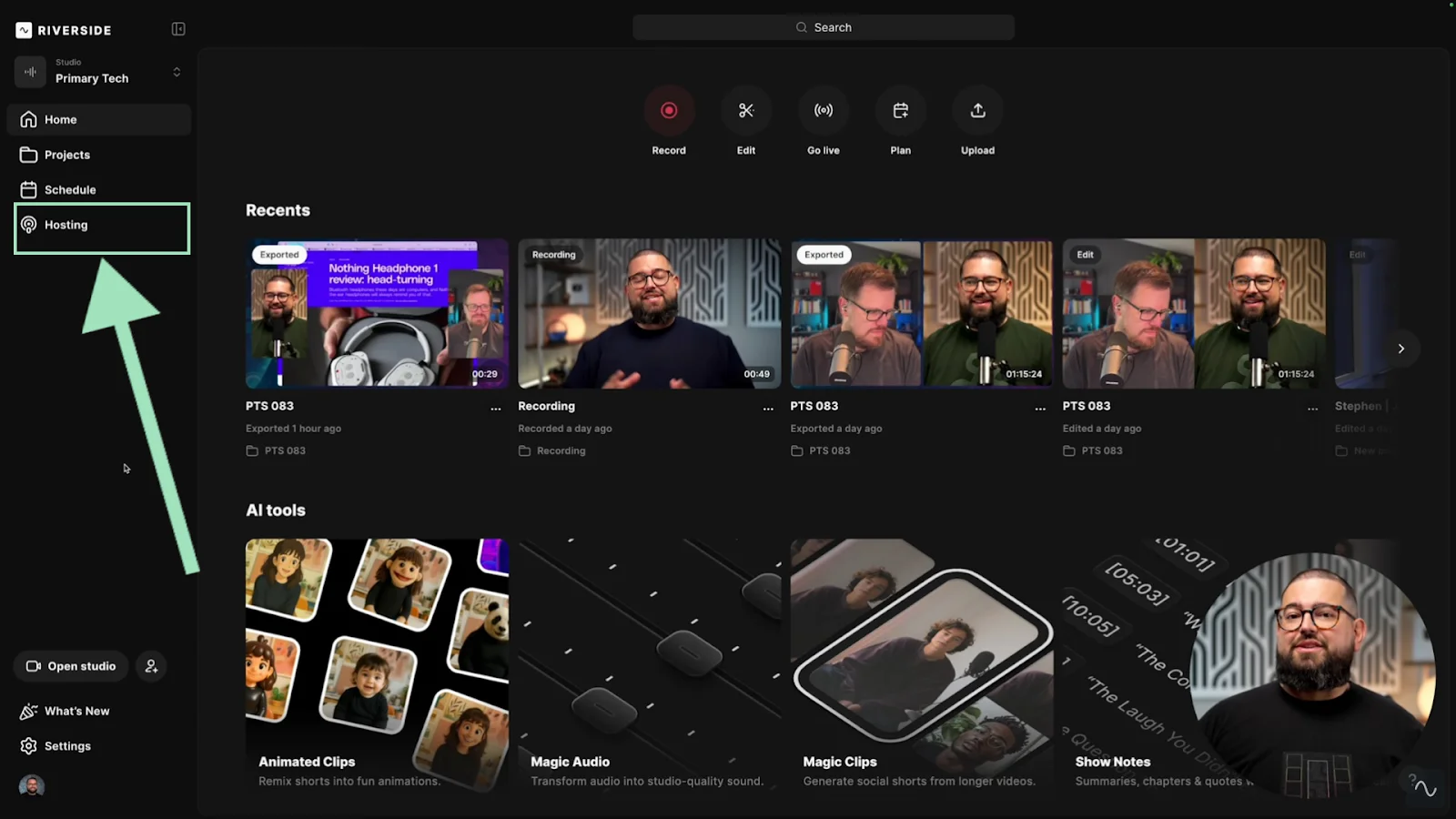
Step 1: Log in to Riverside, and access the “Hosting” tab in your dashboard.
Step 2: Click on the purple “Set up podcast” button to enter your podcast details (name, description, categories, cover art, etc.).

Step 3: Now that you’re done setting up your podcast, click on “Create new” to add a new episode.
Select whether you want to upload a new file or choose a file from your Riverside account.
If you’re migrating from another host, you can also easily import your show by pasting your podcast’s RSS feed link under “Let's find your show”.
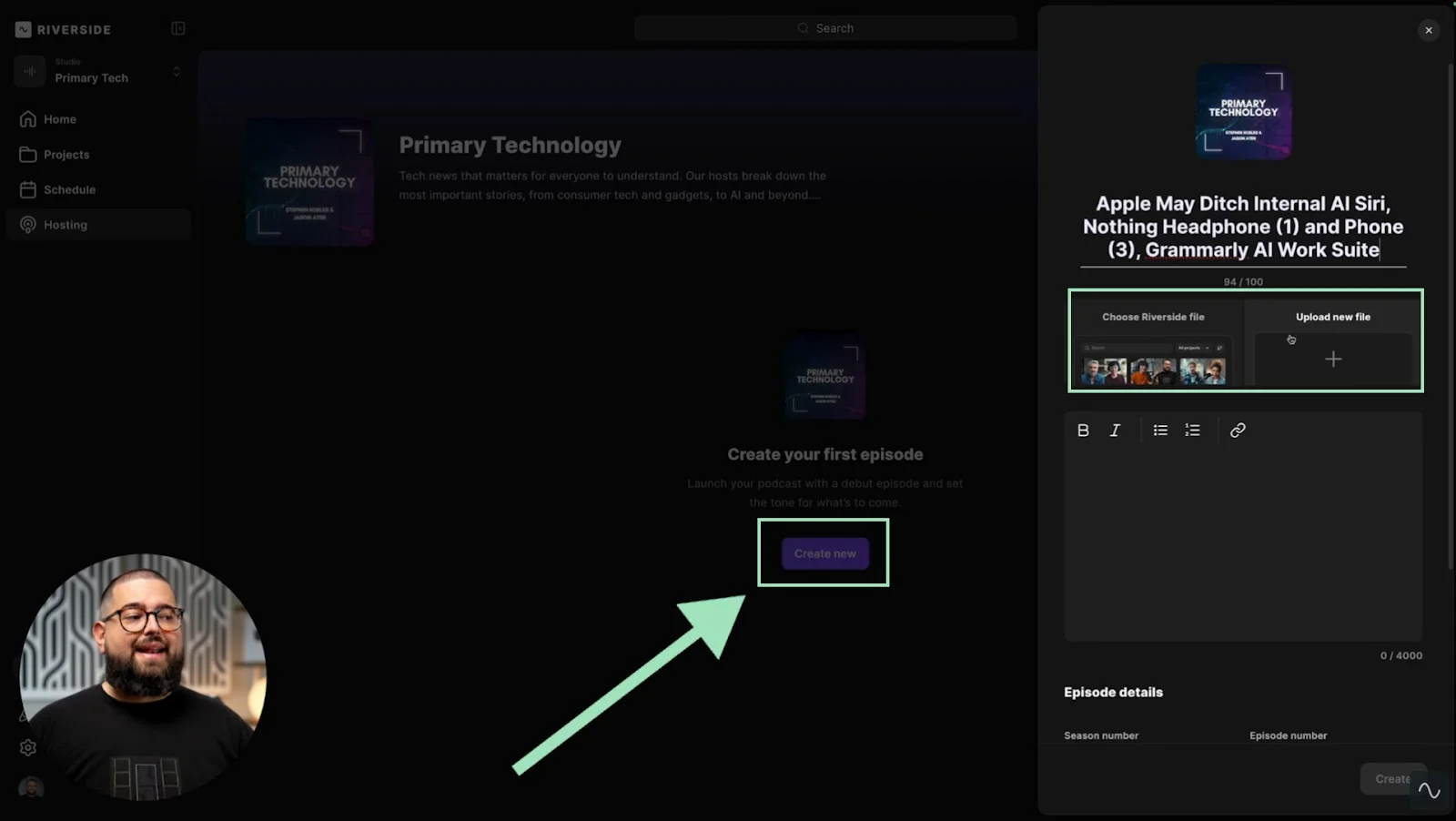
If you click on “Choose Riverside file,” you can pick any of the exports you’ve recorded and edited on Riverside without having to upload any file on your computer.
You can easily search through your exports by typing the name of your recording, or by filtering per project.
.webp)
Step 4: After choosing your export, you can fill in the details. Type your episode title, season number, and type, as well as add a custom thumbnail and show notes (you can include hyperlinks and bulleted lists).
Don’t forget, you can easily generate your show notes, podcast covers, and episode covers automatically by asking Co-Creator to do it for you!
Once you’re done, click “Create” in the lower right corner.

Step 5: Now that your podcast has at least one episode, you can one-click publish it on Spotify by clicking on “Connect to Spotify.”
You will be prompted to connect to your Spotify account. Then Riverside will automatically publish the episode on Spotify.
.webp)
Next time you’ll upload a new episode, you can choose to publish it immediately or schedule it for a later date.
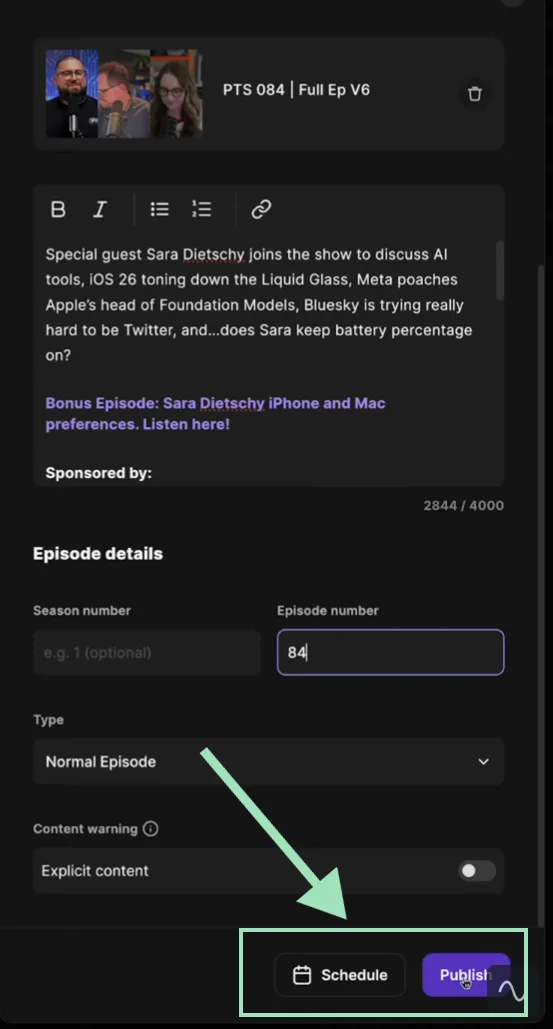
Step 6: You can also one-click publish or schedule your episodes on YouTube and Apple Podcasts by connecting your accounts.
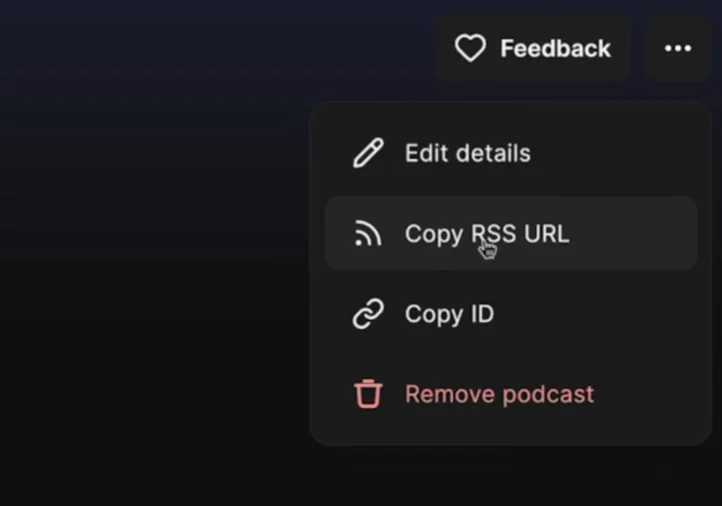
If you want to publish it to any major directory, you can always use the RSS URL. To find your podcast RSS URL, click on the three dots “...” icon on the upper right corner of the screen, then select “Copy RSS URL.”
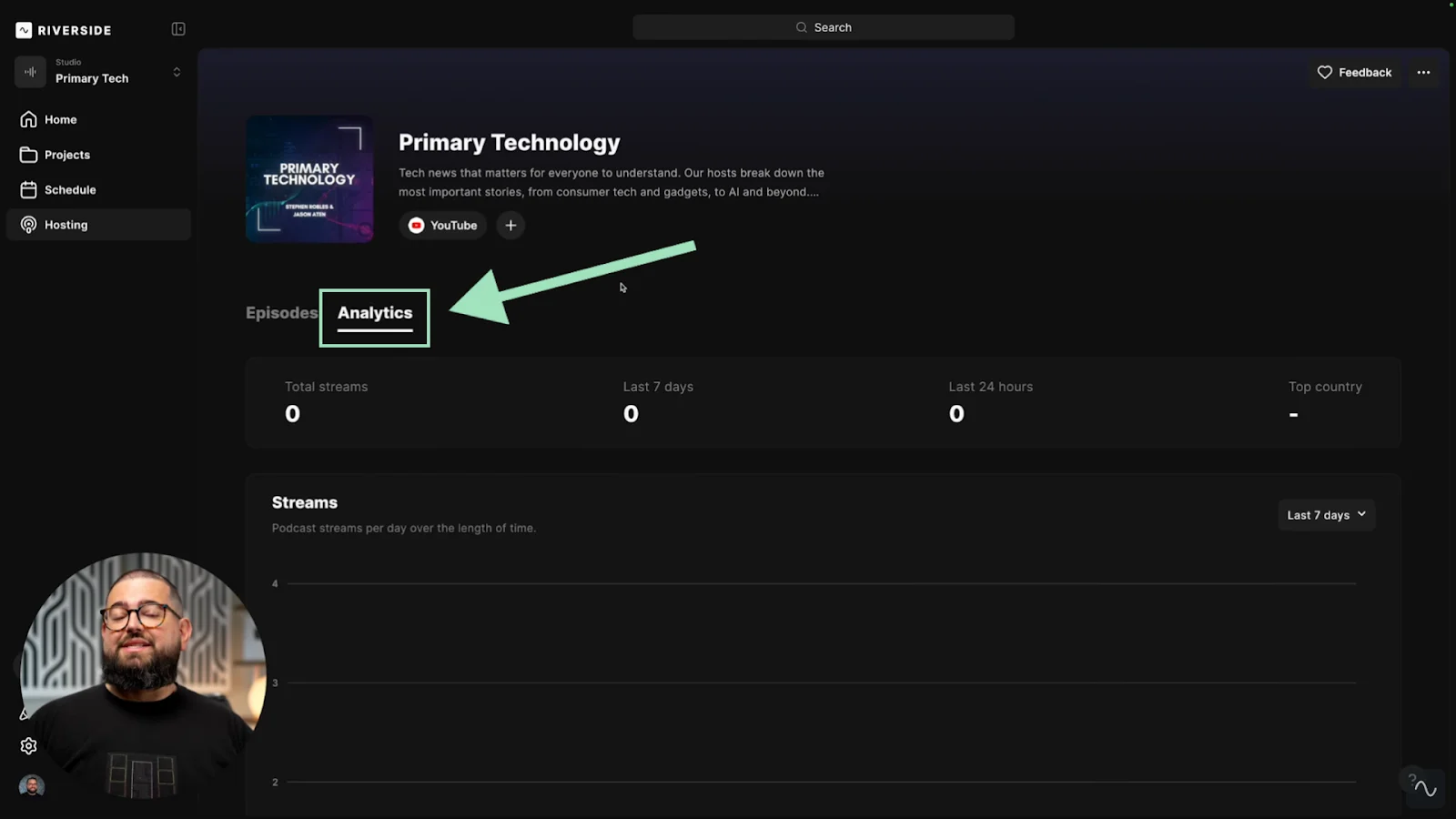
Step 7: If you want to check how your episode metrics, click on the “Analytics” tab from your “Hosting” dashboard.
You’ll see how many streams your podcast gets, which countries it’s most popular in, and the platforms your listeners use to tune in.
Spotify’s podcast requirements
When uploading your own pre-recorded video or audio, these are the requirements you need to hit:
Audio formats
Spotify is compatible with:
- MP3, M4A, or WAV audio file formats.
They don't have a size limit, but using a smaller file size means faster uploads.
They recommend:
- A high bitrate of 128kbps+ for MP3s and MP4s with AAC-LC.
- A maximum episode length of 12 hours (roughly 2 GB @ 320 Kbps).
- Master your audio to -14 LUFS (Loudness Units Full Scale) integrated to prevent Spotify from turning your audio up or down, which can add noise or distortion.
- Keep your master's True Peak (TP) below -1.0 dB. If your master is louder than -14 LUFS, keep the True Peak below -2.0 dB to avoid distortion when your file is transcoded.
Image formats
Podcast cover art should:
- Be a JPEG, PNG, or TIFF file.
- Use a 1:1 (square) aspect ratio.
- Use the highest resolution possible. The minimum is 640x640 pixels, but the maximum is 10000x10000 pixels. The best practice is to use 3000x3000 pixels, so it looks sharp on all devices and is compatible with other directories like Apple Podcasts.
- Be encoded with an sRGB color space, 24bits per pixel.
Video Files
Videos must:
- Be a MOV or MP4 format
- Have a single audio and a single video track.
They suggest the following settings:
- H.264 High Profile
- Aspect ratio:16:9
- Bitrate: Maximum of 25 Mbps for a video with 1080p resolution, or 35 Mbps for a 4K video
- Video resolution:1080p
- 8-bit color depth and 4:2:0 subsampling
There’s no size limit, but your video can’t be longer than 12 hours.
Metadata
- Besides podcast and episode descriptions, consumer-facing elements should not exceed 20 characters.
- Your RSS feed must include a unique podcast title, cover artwork, podcast description for at least one episode recorded, and the audio file uploaded to your host.
- Mark your podcast as “Explicit” in the metadata if it contains any explicit language or adult content.
Legalities
- Music copyright: You cannot use music you don't own, even if it's on Spotify. You must use royalty-free music from a service you pay for or from sources with a clear Creative Commons license. If you’re using Riverside, no worries for you because our music library is royalty-free.
- Cover art and AI: You must have the rights for any images you use. Even using stock photos requires the correct commercial license. If you use AI-generated art, avoid using trademarked logos or branding that isn’t yours.
- Accessibility: Accessibility is legally required in some jurisdictions and platforms (like the ADA in the U.S.). Providing captions or transcripts is the best way to ensure compliance and it also massively boosts your SEO.
Check out Spotify's full guides for audio, images, video and podcast specifications.
Note: If you’re recording your podcast on Spotify with Riverside, you’ll automatically meet the upload requirements.
How to upload an existing podcast on Spotify
If you already have a podcast on a hosting platform, link it to Spotify using an RSS feed from your host.
Besides meeting the above requirements, follow these steps:
Step 1: Go to Spotify for Podcasters and click “Get Started” to begin the setup process.
Step 2: Log into your existing Spotify account using the email associated with your podcast host to avoid any upload errors. If you don’t have an account, create a new one.
Step 3: As you already have a podcast, select “I already have a podcast.”

Step 4: Paste the RSS link of your podcast into Spotify’s entry box.

Step 5: Spotify will ask you to verify your podcast and that you are the podcast owner, by submitting a code sent to the associated email address.
Step 6: Add additional details like podcast category (you'll have a variety of topics to choose from), language, and country.
Step 7: Click “Submit”.
Keep this in mind to ensure a smooth upload process.
Additionally, note that Spotify won’t notify you when your show goes live, so keep an eye out. Once it’s live, share it on social media and use podcast-specific marketing tools for the best results.
What to do after publishing your podcast on Spotify
Once you’ve published your podcast, you can start growing it. Spotify offers several ways to promote and monetize your show.
How to engage with your audience on Spotify
Spotify has introduced several tools to help podcasters interact with their listeners.
- Episode comments: Make sure you enable and manage listeners' comments on podcast episodes. All comments must be approved by you before they show publicly, and you can like or reply to them.
- Polls and Q&A: Ask your audience fun or thought-provoking questions related to the episode topic, or use polls to let them vote on something.
- Ratings and follows: Ask for a quick rating at the end of the episode and remind new listeners to follow your podcast on Spotify.
How to monetize your podcast on Spotify
You can monetize your podcast on Spotify using these simple methods:
- Podcast subscriptions: Spotify allows you to offer exclusive episodes to subscribers for a monthly fee. To be eligible, you need at least two published episodes and 100 listeners in the last 60 days.
- Listener support: Accept monthly donations from your audience. This is available in the U.S. with the same requirements as subscriptions.
- Ads: Add sponsor-read ads to your episodes. This is invite-only and available in the US, UK, and Australia.
- Sponsorships and affiliates: Find businesses or products that want to reach your audience and feature them in your podcast.
Read more: Check our guide on how to promote and monetize your podcast.
Troubleshooting: How to fix errors when uploading podcasts on Spotify
Running into issues? Here are the fixes for some of the most common Spotify podcasting problems.
Error when adding an RSS feed link
Your RSS feed might be empty (missing GUID) if you didn’t upload at least one episode to your host before submitting it to Spotify.
Also, make sure the email you’ve used is valid and verified.
Episode missing or stuck in “processing”
Re-encode your audio to MP3 at 44.1 kHz, constant bitrate 128–192 kbps. Next, retry your upload or republish in your host.
Duplicate podcast listings
Claim your show in Spotify for Creators using the email tied to your RSS feed. If you migrated hosts, set a 301 redirect from the old feed to the new feed.
“Locked feed” error or unable to add feed
Some podcast hosts include a <itunes:block> or similar tag in the RSS feed to prevent unauthorized transfers.
Disable that lock on your old host by checking the hosting dashboard or contacting their support center.
FAQs on How to start or upload a podcast on Spotify
How long does it take for a new podcast episode to appear on Spotify?
Once you submit a new podcast episode, it usually appears on Spotify within a few hours to a day. The exact timing can vary due to server load and verification checks.
How do I change my podcast category on Spotify?
To change your podcast category on Spotify, just update the <itunes:categories> field in your RSS feed through your podcast hosting service. If you're using Spotify for Podcasters, head to the settings and update your category there. You can also select categories when you first submit your podcast.
How much does it cost to have a podcast on Spotify?
Listing your podcast on Spotify is free since the platform isn’t hosting your files but rather streaming them from your podcast host.
And Spotify for Podcasters is a free hosting service from Spotify if you need a place to host your files too.
Do Spotify podcasts make money?
Spotify itself does not pay you directly for podcasts. However, you can monetize your podcast through Spotify for podcasters’ monetization tools. This includes services for ads, paid subscriptions, and donations.
You can learn more below or in our full Spotify for Podcasters review.
How do I see how many listeners I have on Spotify?
Here's how to check your Spotify podcast's analytics:
- Log in to Spotify for Podcasters.
- Navigate to your dashboard by clicking on your profile.
- View detailed analytics including unique listeners, total streams, and followers.
How does Spotify’s RSS Feed work?
Spotify uses your podcast's RSS feed to grab new episodes and updates automatically.
Once you submit your RSS feed, Spotify regularly checks for new content and updates your podcast’s page with any fresh episodes. This means your listeners always get the latest content without you having to lift a finger. Just make sure your RSS feed includes the essentials: podcast title, description, and at least one episode.
How do I find my podcast’s "Listen on Spotify" Badge?
You can find your podcast’s “Listen on Spotify” badge in the Spotify for Podcasters dashboard. After logging in, go to the "Marketing" section, where you can generate and download the badge. You can use the badge on your website, social media, or any promotional materials to guide listeners to your Spotify podcast.
Can I edit my podcast episodes after publishing them on Spotify?
Yes, you can edit or replace your podcast's audio file plus update titles and descriptions after it's published.
You can do this in your hosting platform (like Riverside or Spotify for Creators). But you can’t do this directly in Spotify by reuploading the files to the same episode. Spotify and the other listening apps will reflect the changes within a few hours.



-%25255B2021%25255D.webp)

.webp)
.webp)


