Key takeaways:
- Buzzsprout is a beginner-friendly podcast host that offers a clean interface, guided onboarding, and reliable distribution.
- Pricing is based on your monthly upload hours (not on file size or storage limits), which works better for weekly shows.
- It covers the basics well, but advanced creators may outgrow its features and monetization.
Buzzsprout is a popular podcast hosting platform ideal for beginners.
But it’s not the only option, and choosing the right host matters as your podcast grows.
In this review, I break down Buzzsprout’s key features, pricing, pros, and limitations. Plus, I’ll compare it with alternatives so you can decide whether it’s the right fit for your podcast.
What is Buzzsprout? Quick overview
Buzzsprout is a podcast hosting platform built for podcasters who want a beginner-friendly, audio-first host with a simple setup. It handles the basics well and features an easy-to-use interface.
But, more experienced podcasters, may quickly outgrow its limitations. Upload caps, lack of video support, and add-on costs can hinder your ability to grow your show.
Once you are ready to expand your reach and streamline your workflows, you will need a more powerful alternative.
Buzzsprout pros and cons
Here’s a quick recap of Buzzsprout’s strongest and weakest features.
Buzzsprout’s pros:
- Ease of use: Its intuitive dashboard and guides are ideal for beginners.
- Reliable analytics: IAB-certified analytics give you cleaner, more reliable data.
- Low setup overhead: The included website, embed players, and ad insertions cover basic promotion without extra tools.
- Strong onboarding and support: Helpful documentation and responsive support make it easy to get started.
- Helpful SEO features: Buzzsprout’s custom podcast site is optimized for search and includes transcripts, RSS feed access, app links, and domain support.
Buzzsprout’s cons:
- Monthly upload limits: Buzzsprout's restrictive plans can get expensive for longer shows or podcasts that publish frequently.
- No native video podcasting: Buzzsprout is an audio-only host. If you’re looking for video hosting, try Riverside or Spotify.
- Limited monetization: No advanced ad targeting, programmatic ads, or end-to-end sponsorship management.
- Pricey add-ons: Buzzsprout's AI-powered tools come at an extra cost, which can add up quickly.
- No built-in recording or advanced editing: You’ll need separate software for recording and editing your show, which means you’ll need additional paid subscriptions.
What are Buzzsprout’s key features?
Now let’s run through some of Buzzsprout’s key features and how they’re likely to affect your workflows and podcast.
Hosting and distribution
Like all hosts, Buzzsprout automatically generates an RSS feed for your show that you can submit to podcast directories. But it also integrates directly with popular directories (Apple, Spotify, Amazon Music, etc.), so you can submit your feed with a click. For platforms that still require manual submission, it provides clear, step-by-step instructions.
Buzzsprout feels more reliable because it’s so simple to use, reducing room for error. Its stripped-down interface and guided workflows make uploads straightforward, feeds stable, and episode delivery consistent across podcast apps.
Podcast website and embed player
One of Buzzsprout’s standout features is that it provides a basic podcast website (under Buzzsprout’s domain) with all paid plans. You can also get a custom URL for an additional fee.
This site is automatically generated from your show’s details and episodes. But, you can customize the theme color and background image.
Here’s an example:
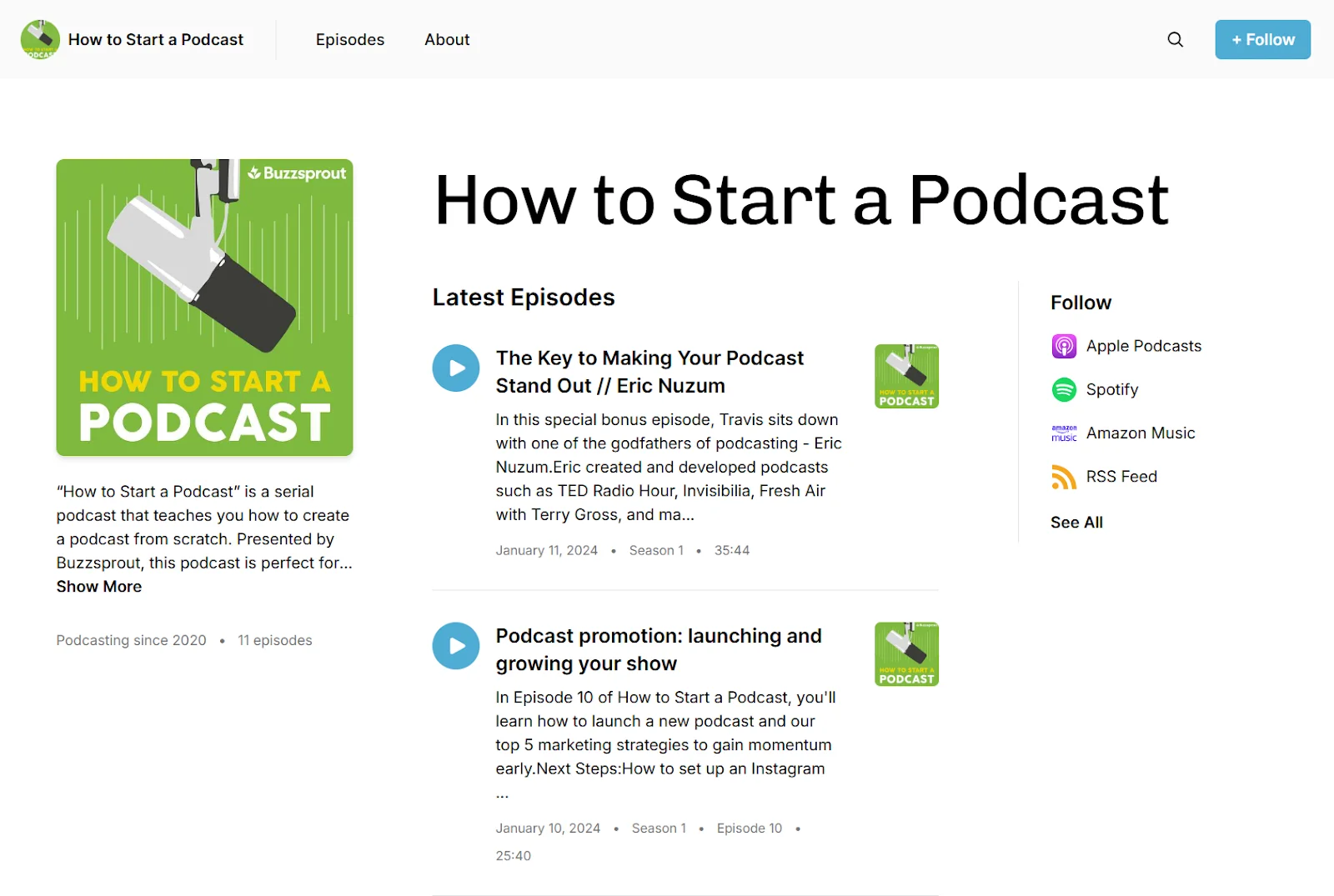
The site is basic, but mobile-responsive. Listeners can browse episodes, read show notes, and play episodes in a web player. It’s a nice perk for creators who don’t have an existing website!
If you already have a website, Buzzsprout also provides embeddable episode and playlist players. Add them to any page with a short code snippet, and each player includes a subscribe button for major podcast apps.
Analytics (IAB-certified)
Buzzsprout’s podcast analytics are IAB certified, which means they adhere to industry-standard guidelines for measuring downloads. This ensures your download numbers are filtered for bots and duplicate requests, making them more trustworthy.
In the Buzzsprout dashboard, you’ll find all the basic key metrics podcasters rely on, like:
- Total downloads over time.
- Episode downloads.
- Episode download trends over time.
- Listener location.
- Apps and platforms listeners use to access your show.
- Device info and operating system.
The analytics are clear and easy to read, but they aren’t as detailed as they could be. More advanced podcasters may want to supplement with external analytics tools.
Dynamic content and announcements
Buzzsprout offers dynamic content insertion so you can add promotions or ads to your podcast without re-editing your original episode files.
You can insert short audio clips at the beginning, middle, or end of an episode and apply them across multiple episodes at once. Buzzsprout can also scan episodes for natural breaks and suggest mid-roll placement.
Best of all, the dynamic insertion is non-destructive, so it doesn’t overwrite your original file. You can swap it out or even remove it just as easily as you can add it in.
But, this isn’t full dynamic ad insertion based on listener data. It requires more manual setup. Either way, it’s still a practical option for newer podcasters who want simple promo or ad placement.
Cohost AI
Buzzsprout now groups most of its AI workflow features under Cohost AI. This tool uses artificial intelligence to help you automate and streamline parts of your podcast workflow. Here’s what it can do:
- Generate episode titles.
- Draft your episode description.
- Create chapter markers from your audio.
- Generate transcripts for better accessibility and SEO.
- Turn your episodes into blogs and social posts.
Cohost AI is a paid add-on, costing an extra $5 to 20 per month, depending on your plan.
Overall, this can be a useful time-saver, but many podcast editors already include AI-powered workflows. For example, with Riverside, you can use AI to automatically generate chapters, descriptions, and show notes. There’s even a chat-based editor to turn your podcast into social media videos, podcast covers, and more.
Read more: For more options, check out our list of the best transcription services.
Magic Mastering
Buzzsprout offers an optional audio enhancement tool called Magic Mastering. After you upload an episode, Magic Mastering uses AI to apply level balancing, noise reduction, EQ, and compression to improve overall clarity.
Like Cohost AI, Magic Mastering is a paid add-on costing an extra $5-20 per month, depending on your plan. It’s a nice extra, but for the price you’re paying, you’re better off using a dedicated podcast editor, like Riverside. You’ll get a lot more than just audio enhancement (and much better results) this way.
Fan mail
Fan Mail is Buzzsprout’s built-in audience engagement feature. When enabled, it automatically drops a link in your episode descriptions that allows listeners to text your show directly. This way, you can gather audience questions, read feedback, or play listener stories on your next episode. Fan Mail also supports voicemail and one-time private replies.
While it does not replace a dedicated community forum or CRM system, it is a genuinely nice feature for audience connection.
Monetization options
Buzzsprout is not an ad network or a full monetization suite, but it covers the basics that independent podcasters need to get started with earning, including:
Dynamic ads and sponsorship reads
Buzzsprout’s dynamic content feature can be used for ads. If you secure a sponsor or want to run an affiliate promotion, you can record a short ad read and insert it across all episodes.
Sponsors and affiliates tracking
While this doesn’t automatically insert anything, there’s a field in your Buzzsprout account's Monetization tab where you can keep track of your sponsor/affiliate information.
You can also display your sponsor or affiliate links on your Buzzsprout website, so listeners can click through.
Buzzsprout Ads program
Buzzsprout Ads allows you to automatically insert ads into your episodes and earn a share of the revenue.
It’s only available to shows that meet certain criteria. But it’s a very simple, set-it-and-go system for podcasters who may not have their own sponsors.
Be aware, you don’t get control over specific sponsors, which means they may not be the best fit for your audience.
Listener support
Buzzsprout includes a “Listener Support” feature that is essentially a built-in donation system. It allows your fans to sign up to contribute monthly donations to support your show. Buzzsprout even uses Stripe to handle the payments.
Note that Buzzsprout takes a 15% cut of this revenue.
Premium subscriptions
Buzzsprout allows you to offer premium content directly to your most dedicated listeners. You can lock bonus episodes or ad-free content behind a paywall. Listeners can subscribe to access this exclusive material, providing you with a recurring revenue stream without using a separate platform.
Buzzsprout pricing: What it really costs
Unlike hosts that price plans based on total storage or bandwidth, Buzzsprout charges based on the number of audio hours you upload each month. This works wellfor lower volume podcasters, but may cost more for podcasters who record and publish a lot of content.
Let’s take a look at Buzzsprout’s plans and what they include.
Keep in mind that:
- Buzzsprout’s free tier is more of a trial. Episodes on the free plan are only hosted for 90 days and are then removed from your feed.
- Paid plans differ mostly by the addition of more in-depth analytics and monetization tools.
- If you do go over the monthly time caps, you must pay $4 per additional hour.
Overall, pricing for Buzzsprout hosting is reasonable and in line with other podcast hosts. You’re also not locked into a contract. If you take a break from podcasting, you can downgrade your plan or pay $5/month to keep your episodes live on directories.
Buzzsprout also provides unlimited storage, something other podcast hosts don’t offer.
Pro tip: If you’re looking for a more affordable option, consider an all-in-one platform like Riverside, which offers unlimited podcast hosting. You can record, edit, and host your show starting at only $24 a month.
Buzzsprout add-on costs
Cohost AI and Magic Mastering are not included in Buzzsprout’s base plans. They are paid add-ons, and their cost increases with your subscription tier:
- On the $19 plan Cohost AI and Magic Mastering each cost an additional $5 per month. This totals to $29 per month.
- On the $39 plan, they cost an additional $10 per month each. This totals to $59 per month
- On the $79 plan they are an additional $20 per month each. This totals to $119 per month.
That pricing structure is unusually counterintuitive: The more you already pay for Buzzsprout, the more these add-ons cost. So if you’re on the $79 per month plan and want both Cohost AI and Magic Mastering, that adds another $40 per month on top of your base subscription.
It’s easy to understand how quickly these extra features can add to your monthly fees.
Pro tip: If you’re looking for a more affordable option, consider an all-in-one platform like Riverside, which offers unlimited podcast hosting. You can record, edit, and host your show starting at only $24 per month.
Setting up: How do I upload a podcast using Buzzsprout?
If you’re starting a brand new podcast, here’s how to set up on Buzzsprout:
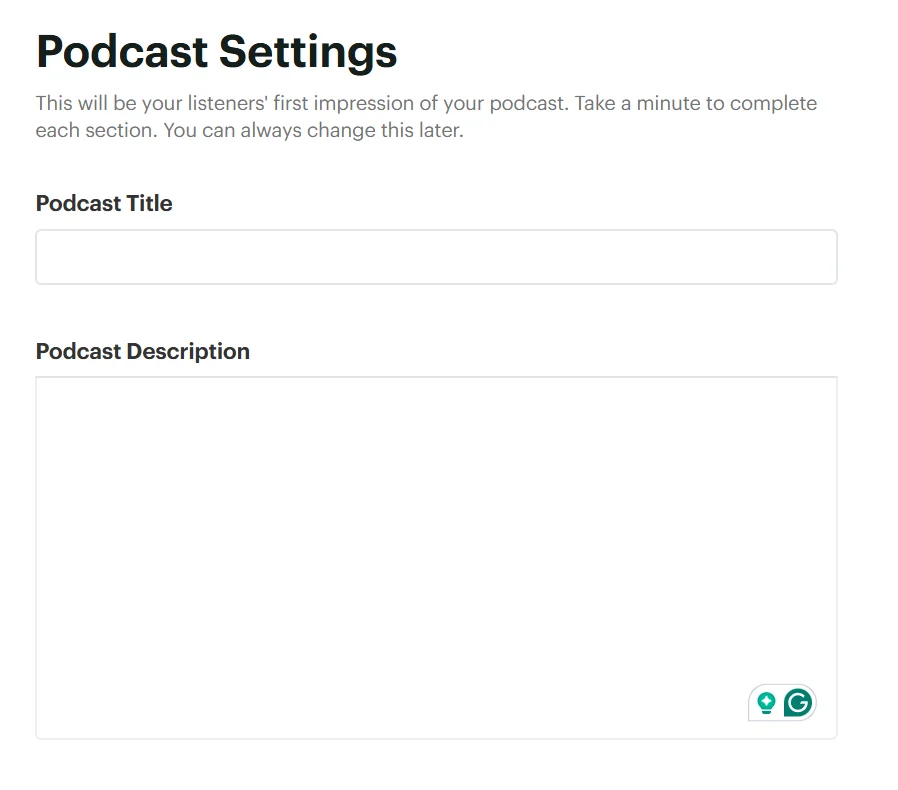
Step 1: Sign up and provide your podcast info
When you sign up, Buzzsprout asks for your podcast’s basic details, including the podcast description, title, category, and language. You’ll also need to provide an author name and a contact email.
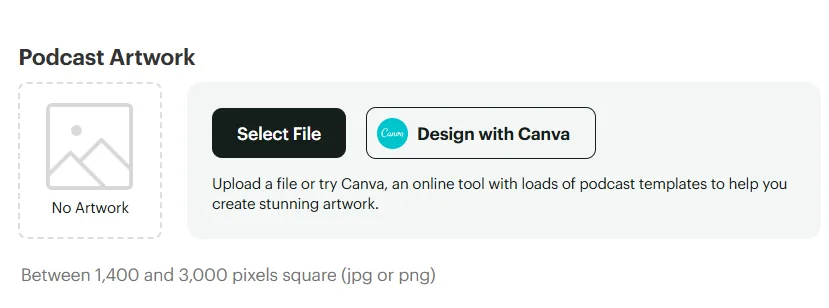
Step 2: Upload your podcast artwork
You’ll need to upload cover art for your podcast. This is the square image that shows up in podcast directories, like Apple and Spotify.
Pro tip: If you’re using Riverside, just prompt Co-Creator to create a thumbnail based on your recordings for you.
Step 3: Publish an episode
To activate hosting on Buzzsprout, you need to upload at least one episode or trailer. Just drag and drop your MP3 file into the dashboard to get started.

Step 4: Submit your podcast to directories
Buzzsprout’s Directories tab lists major podcast platforms along with the status of your submission.
For brand new shows, you have to go through each directory and opt in to being listed. Just follow Buzzsprout’s instructions for each.

Step 5: Verify and wait
After submitting your podcast to directories, all that’s left is to wait. Apple might take anywhere from a few hours to a couple of days. Spotify is usually fast (sometimes within hours or even minutes). Buzzsprout’s dashboard will update the status as you are approved by each directory.
Step 6: Check your podcast apps
Once approved, do a quick check by searching your podcast name in the directory apps you submitted your RSS feed to. It’s a good idea to subscribe to your own podcast on multiple apps to ensure everything looks right.
If something’s off, you can correct it in Buzzsprout, and it will update the feed. Changes propagate to apps within a day or so.
That’s it; you’ve launched a podcast! For me, Buzzsprout’s guided onboarding made what can be a daunting process very simple. It even has a checklist on the home dashboard for new podcasts, which will remind you to do things (like submit to each directory).
How do I import an existing podcast to Buzzsprout?
If you already have a podcast hosted elsewhere and want to migrate it to Buzzsprout, here’s how to do it without losing subscribers:
Step 1: Sign up and choose import
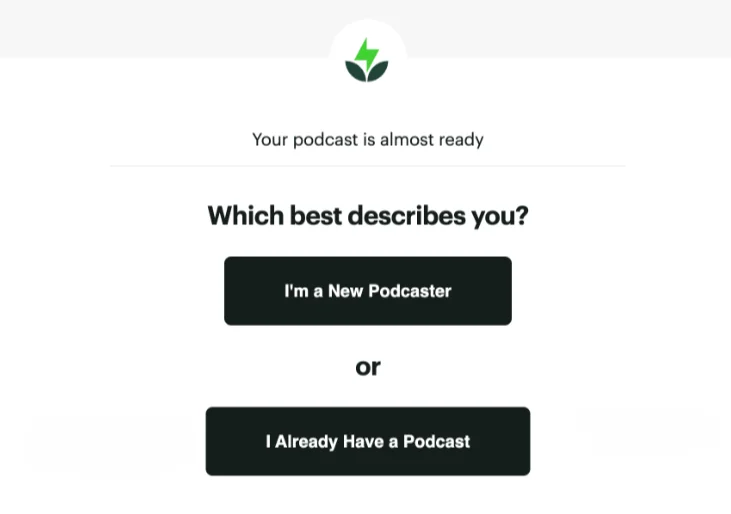
After you create a Buzzsprout account, select the option “I Already Have a Podcast” when prompted.
Buzzsprout will then guide you through the import process. Don’t worry, nothing will change on your old host just yet.
Step 2: Import your episodes
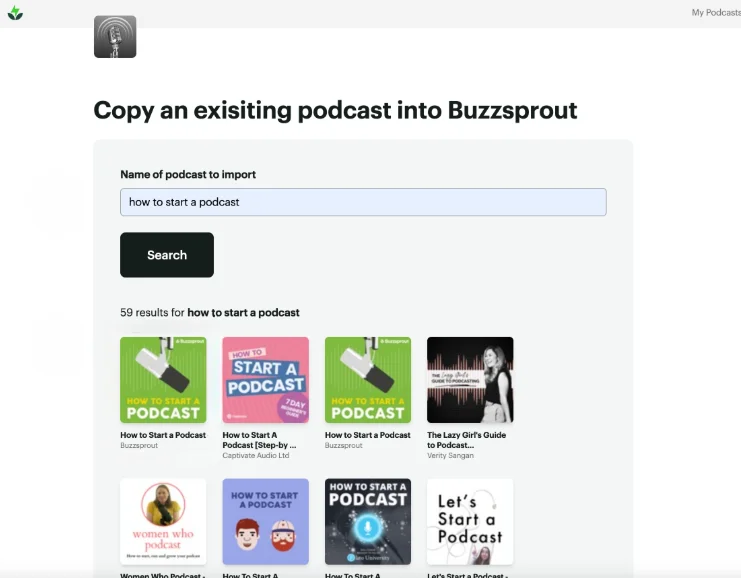
Find and select your podcast in Buzzsprout.
Buzzsprout will automatically fetch your past episodes in a few minutes, starting with the most recent ones first.
During this process, Buzzsprout also grabs your show info, like your title, description, and artwork, so that your new listing matches your old one.
Step 3: Preview and verify
Once imported, check that your episodes and details look correct in Buzzsprout.
Since this is just a copy at this stage, your original podcast is still live on the old host and your subscribers are none the wiser.
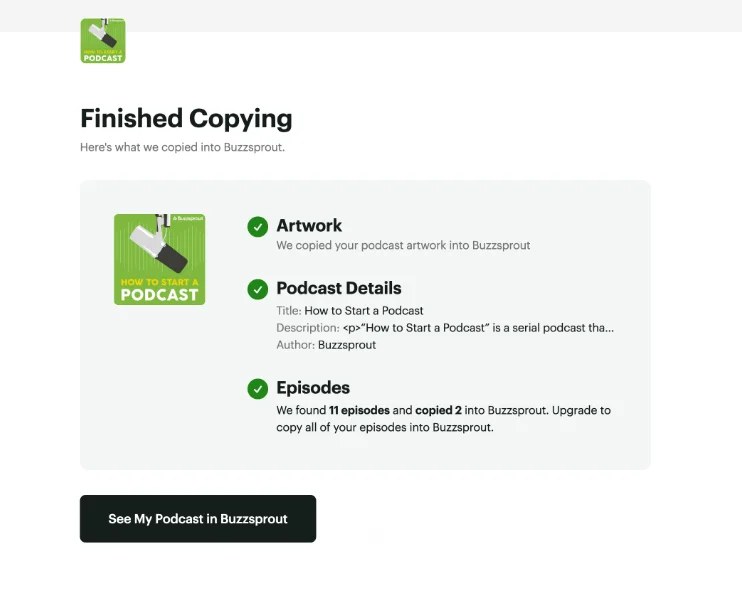
Note: Buzzsprout allows you to import and test for free, but to actually host all those episodes and officially redirect them, you’ll need to pick a paid plan.
Step 4: Redirect your old RSS feed
The most important step is redirecting your old podcast RSS feed to your new Buzzsprout feed.
On your old hosting platform, look for a setting usually called “301 Redirect” or “Permanent Redirect.” Paste your new Buzzsprout RSS URL there.
Step 5: Close the old hosting account
It’s a good idea to leave your old host account active for at least a couple of weeks before canceling your old subscription. However, from this moment, do not publish new episodes to both places. Once you decide to switch, you should publish new episodes on Buzzsprout only.
When done correctly, the transition is seamless. Existing subscribers won’t need to resubscribe, and most won’t notice anything beyond a brief delay the first time the feed updates.
Buzzsprout vs. Alternatives: How to choose
Buzzsprout’s user-friendly interface makes it ideal for beginners but less so for longer shows or video podcasts.
Here are some options you can look into and compare. For a deeper dive, check our full list of Buzzsprout alternatives.
All-in-one hosting alternative
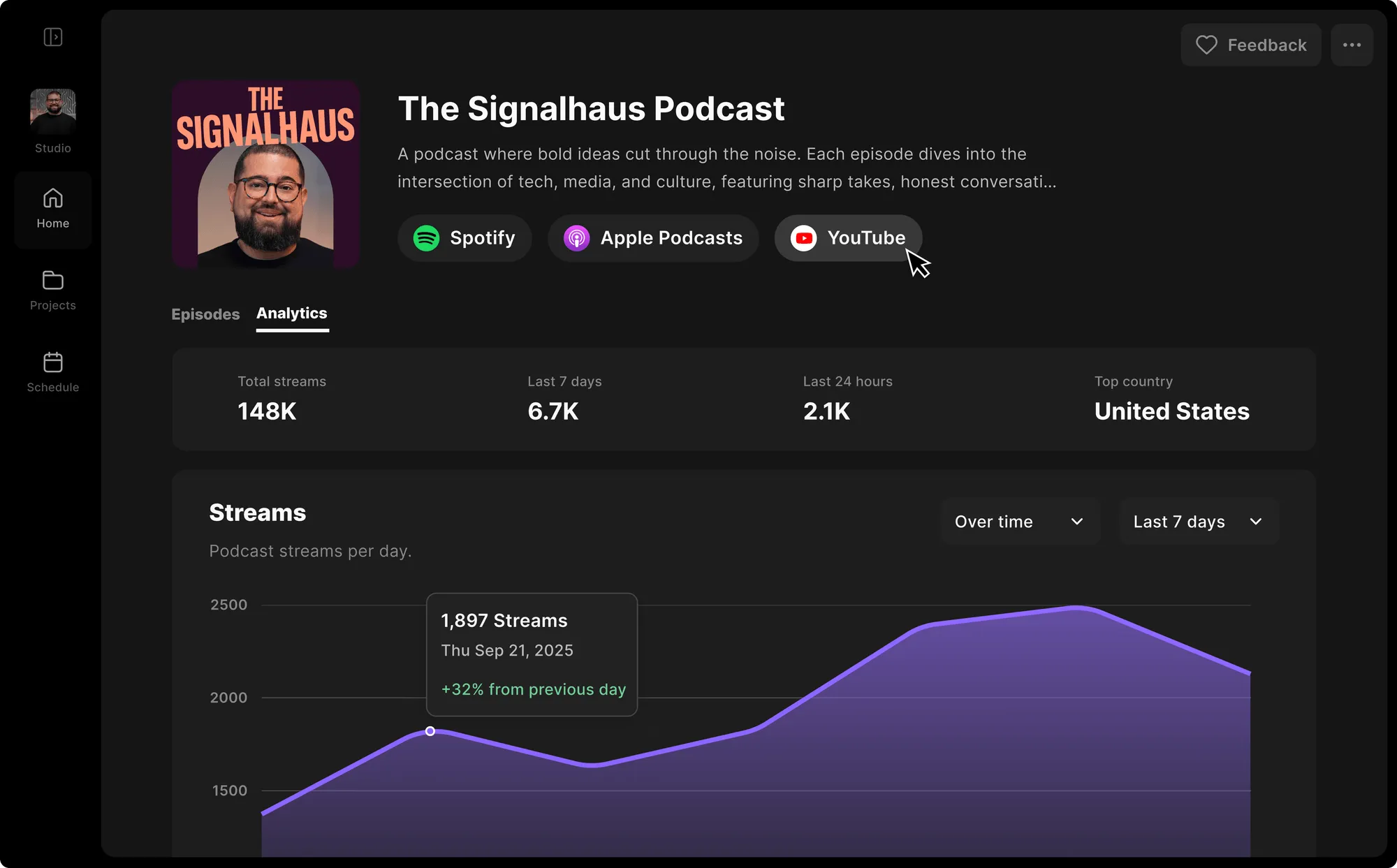
If you want to avoid paying for multiple tools subscriptions for recording, editing, and hosting, choose an end-to-end podcast platform like Riverside.
Record locally in up to 4K resolution with 10 participants or livestream your show. Edit with AI tools to clean up audio, trim filler content and brand your show using captions, overlays, and music. There’s also a chat-based editor you can use to prompt edits or even repurpose your episode into assets like podcast covers, promotional clips, blogs, social posts and more.
And you still get unlimited podcast hosting, a custom automated website, and one-click distribution to all major platforms, all without switching platforms.
Budget-friendly Buzzsprout alternatives
Buzzsprout’s hourly upload pricing can get expensive for longer or more frequent shows.
For a completely free option, try Spotify for Creators. It comes with unlimited hosting but also fewer features.
Another option is to host your podcast on Riverside, an all-in-one platform that won’t require a separate subscription for every part of your podcast. Plus, Riverside has no limits on uploads or storage.
Read more: For more budget options, you can check our list of the best free podcast hosts here.
Buzzsprout alternatives for monetization
Buzzsprout provides basic monetization tools, but if you require more advanced monetization, try:
- Libsyn: With its own ad insertion marketplace (AdvertiseCast) and premium content options, Libsyn is for networks or shows wanting to plug into a larger ad platform.
- Podbean: You’ll get access to an Ads Marketplace and a Patron program built in. It also allows paid subscriptions (premium episodes) out of the box on certain plans.
- Spotify: This is completely free and offers monetization tools that support ads, subscriptions, and video content.
If you specifically need dynamic ad insertion with targeting, campaign scheduling, and geo-targeting, then platforms like Megaphone, Spreaker, and Acast are worth considering.
Buzzsprout alternatives for video
If you’re hosting a video podcast, you’ll need a compatible platform. Some video-friendly podcast hosts include Riverside, Spotify for Creators, and Podbean.
Buzzsprout alternatives for website or tech integrations
If you already have a WordPress site and want tight integration, Castos and Blubrry are built for that. You can publish episodes directly through their WordPress plugins and manage your podcast entirely from your site. Each episode lives on your own domain with structured metadata that helps with search visibility.
Buzzsprout, on the other hand, integrates with WordPress by embedding a player into a page and playing the episodes from Buzzsprout’s servers. This is simple and works well for just listening, but your episode content and RSS feed remain off-site.
FAQs about Buzzsprout
Is Buzzsprout free?
Yes, Buzzsprout offers a free plan, but you can upload only up to 2 hours of content per month and the episodes will be deleted after 90 days. If you want permanent hosting, you must upgrade to one of the paid tiers.
Is Buzzsprout good for beginners?
Yes. Buzzsprout is often rated among the most beginner-friendly podcast hosts. You don’t need any technical expertise because Buzzsprout handles everything under the hood. The interface is clean and intuitive and there is a blog full of tips for new podcasters.
Does Buzzsprout support video podcasts?
No, Buzzsprout does not support video podcasts. If you upload a video file, the platform automatically extracts the audio and publishes it as an audio-only episode.
If you want to record and host full video episodes, you need to use a video-native platform like Riverside.
Does Buzzsprout pay you?
No, Buzzsprout does not pay you directly just for hosting your show. However, you can earn money using its built-in monetization tools. You can join the Buzzsprout Ads program to earn a share of ad revenue if your show qualifies. You can also accept monthly donations through its Listener Support feature, though Buzzsprout takes a 15% cut of those earnings.
What happens if I cancel Buzzsprout?
If you cancel a paid plan, Buzzsprout will downgrade your account to the free plan. Episodes older than 90 days will go offline unless you upgrade again or move them to another host. If you want to stop publishing but keep your podcast live, Buzzsprout also offers a $5 per month Archive plan.




.webp)
-Need-to-Know-About-Podcast-Hosting-Sites.png)