.webp)


Key takeaways
- Digital Audio Workstations (DAWs) can record multiple tracks only if the host and guest are in the same room.
- Remote multitrack recorders can record multitrack audio (or video) remotely.
- While software like Zoom only offers audio multitrack recording, others like Riverside also record video tracks separately.
Multitrack recording provides separate audio and video tracks for each participant, making your final edit easier to control.
But choosing the right multitrack software isn’t always straightforward. Should you use a DAW or a remote recorder? Which option best fits your recording setup?
Below, we break down the best multitrack recording software for podcasts and interviews, so you can choose the right tool with confidence.
Why should you use multitrack recording?
When you use multitrack recording software, you get separate recordings from each participant during the recording session. This makes post-production easy by giving you more control over your audio.
You can easily adjust the volume of a speaker and edit out mistakes or crosstalk without affecting other speakers’ tracks.
5 Best multitrack recording software for all devices
Riverside

Price: Free, $24/month for the Pro version, $34/month for the Live version,
$79/month for the Webinar version.
Compatibility: Browser for Windows and Mac, Mobile app for Android and iOS
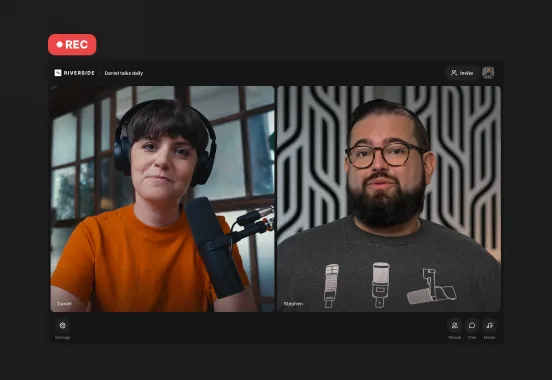
Riverside is one of the most popular multitrack recording apps used by podcasters and livestreamers.
It records locally in up to 4K video and 48kHz audio so the quality of your recording is not affected by slow internet connections. The recordings are then progressively uploaded to the internet and saved to the cloud.
You can record separate audio and video tracks for up to 10 remote guests, or up to 2 in-person guests. And, if you want to record on the go, Riverside has the best multitrack recording mobile app.
After recording, you’ve got a full suite multitrack editor. Here, you can edit in minutes using automated tools for removing filler words, styling your video, and more.
Key features
- Local recording that captures everything directly on your device to preserve quality even in case of internet fluctuations.
- High-quality resolution with up to 4K video and 48Khz 16-bit audio.
- Separate screen, audio, and video track recordings for up to 10 guests.
- Live video call-ins from guests that are also captured on separate tracks.
- Multistreaming to Facebook, Twitch, YouTube, Twitter, and more.
- Chat-based editor for editing in minutes instead of hours by just prompting AI.
- Instantly generate short shareable clips with one click.
- Live Media Board for editing and effects while recording– insert podcast intros, outros, sounds, jingles, and more in real-time.
- Mobile app for on-the-go multitrack recording.
Experience all these benefits and more! Start recording on Riverside.
Zoom

Price: Free (100 participants, 40-minute limit), $13,33/month for the Pro version, $18,33/month for the Business version (yearly plans)
Compatibility: Windows, Mac, Android, iOS, Linux
If you’re not already aware, Zoom is a video conferencing service that can host anywhere between 100-1000 participants. It’s used for virtual meetings, webinars, and even livestreams.
Zoom has a little-known option where you can download the audio recordings for each participant on the call. To do this, you would need to:
- Go into Settings,
- click the Recording tab,
- and enable Record a separate audio file for each participant.
Note that this works for audio only. You can’t download separate video tracks.
Once a recording is done, you can access these files in the recording folder, with each file titled with the participant’s name.
Key features
- Video recording resolution up to 1080p (no multitrack option for video)
- Audio recording resolution up to 48Khz
- Host up to 1000 participants (works only with the more expensive plans)
- Easy and intuitive to use
- Remote multitrack recording
What it lacks
- Lacks 4K video recording
- No video multitrack recording – only audio
- Audio and video quality is susceptible to internet fluctuations
Read more: How to record separate tracks in Zoom


BandLab
Price: Free, optional Membership plan at $70/year.
Compatibility: iOS, Android, Web
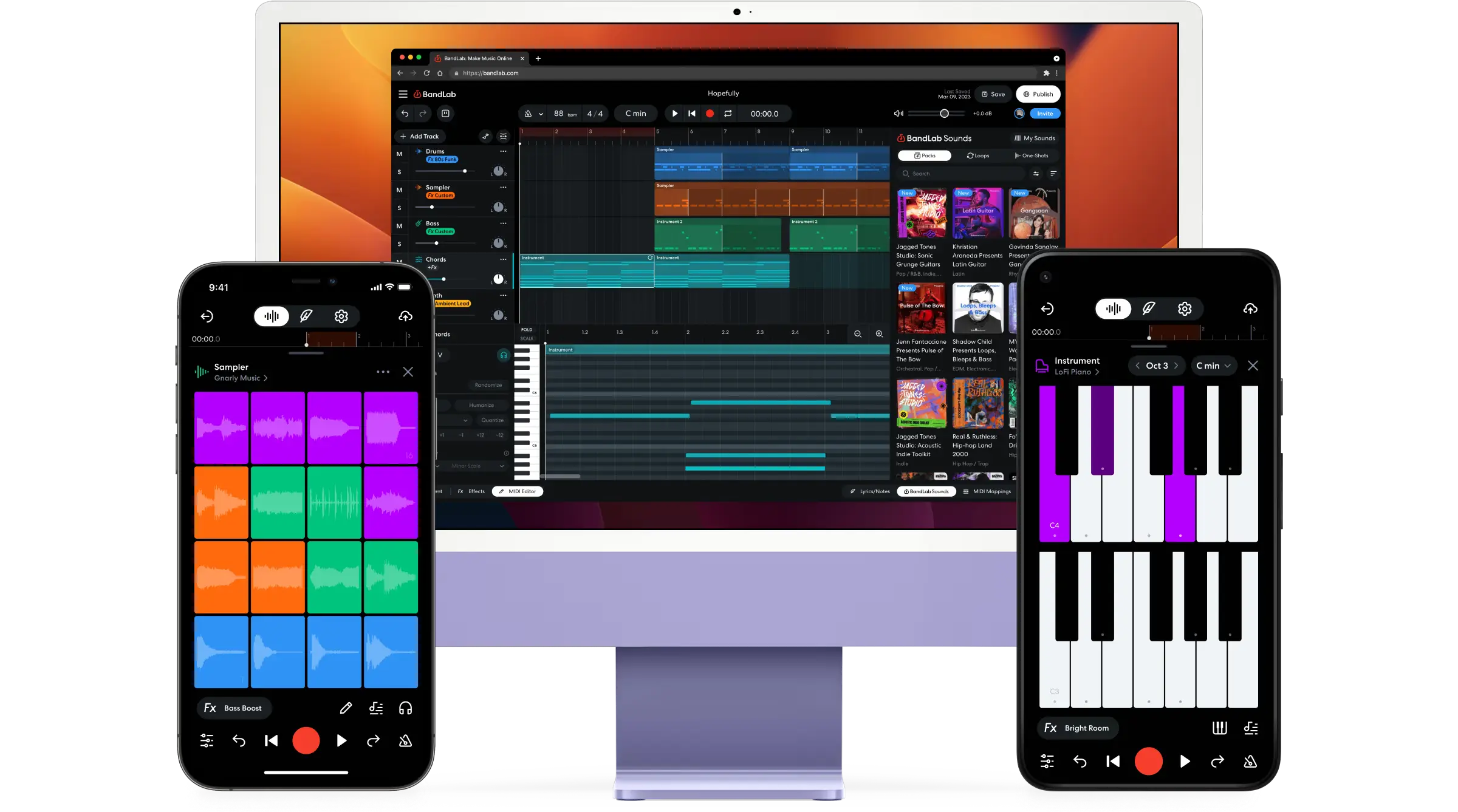
BandLab is a cloud-based DAW that turns your phone or tablet into a full-featured multitrack studio. Its biggest selling point is collaboration. You can record a track on your phone, invite a co-host to add their track from their own device, and mix it all together in the browser.
It offers many built-in post-production tools like automated vocal tuning, mastering presets, and a library of loops and virtual instruments.
Key features
- Built-in effects, instrument presets, drum machine, and a library of royalty-free loops, vocals, and samples.
- Cross-platform mix editor to edit across mobile apps and desktop browsers.
- Unlimited storage and no limits on the number of projects you can save.
- Can invite other users to work on your session in real-time.
- Support for up to 16 tracks or 32 in paid plans.
What it lacks
- Projects’ length is capped to just 15 minutes on the free plan.
- Interface is geared more towards musicians than podcasters.
- All processing is done in the cloud, so it can be slow depending on device performance or internet bandwidth
Audacity

Price: Free
Compatibility: Windows, Mac, Linux
Audacity is a free and open-source audio editing and recording software. While it’s better known for its editing features, it can also be used as a multitrack recorder.
Multitracking on Audacity only works if you have all your guests/participants in the same room. Each of them has to plug their mic input into a mixer or an audio interface, and then Audacity can record separate recordings for each.
Once you’re done with the recording, you can clean up or trim the audio, add sound effects, merge tracks, and more.
Key features
- Supports various audio formats like MP3, Ogg Vorbis, FLAC, AIFF, and MP2.
- 16-bit, 24-bit, and 32-bit sound quality
- Includes a compressor, EQ, normalizer, noise reduction, fades, and many other tools
- Supports various plugins like Nyquist, VST, LADSPA, LV2, and more
- In-person multitrack recording
- Supports audio-only livestreams.
What it lacks
- Remote recording/multitrack recording
- You need external hardware for multitrack recording
Cleanfeed
Price: Free, $29 for the Pro version
Compatibility: Browsers for Windows, Mac, and Linux, Browsers for iOS and Android
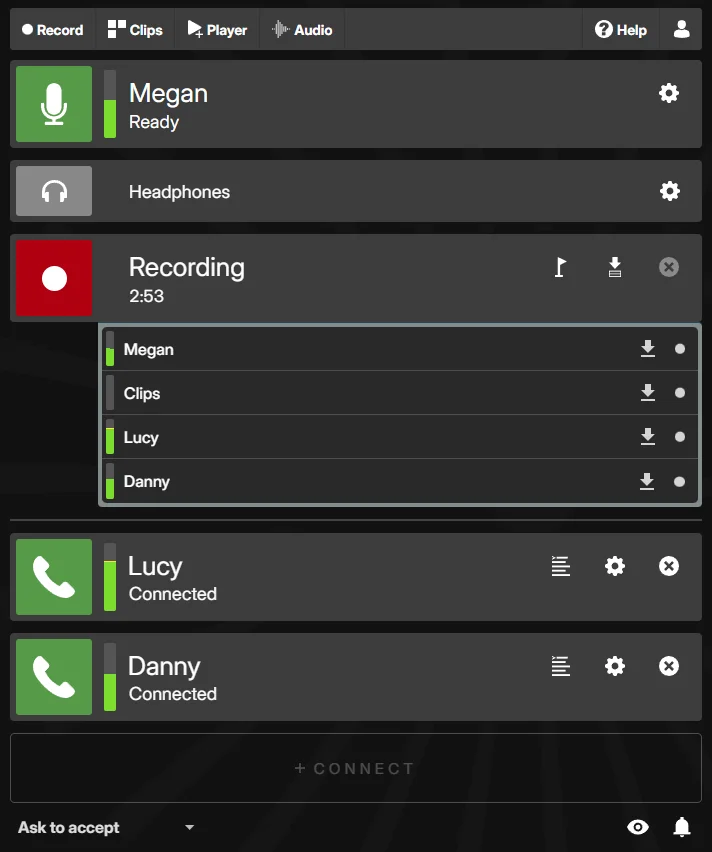
Cleanfeed is another option to record your podcasts remotely. It can record up to 4 people in person, and you get 256kbps mono or 320kbps stereo audio quality.
The primary difference between Riverside and Cleanfeed is that the former records both audio and video, while the latter only records audio.
Another key difference is Riverside records locally, making the recordings invulnerable to drops or fluctuations in the internet, Cleanfeed records over the internet – so any changes in internet quality affect the audio quality of the recordings.
Key features
- Insert intros, idents, beds, and jingles into your podcast.
- Repair audio for guests with no headphones on
- Local and remote multitrack recording
What it lacks
- Local recording
- Video recording
- Editing and transcription
How to record with Riverside’s multitrack software
1. Log in to Riverside
Riverside is browser-based so you can use it on both Windows and Mac devices. You can also log in from Riverside’s mobile app if you’re recording on the go from your phone.

2. Create your recording studio
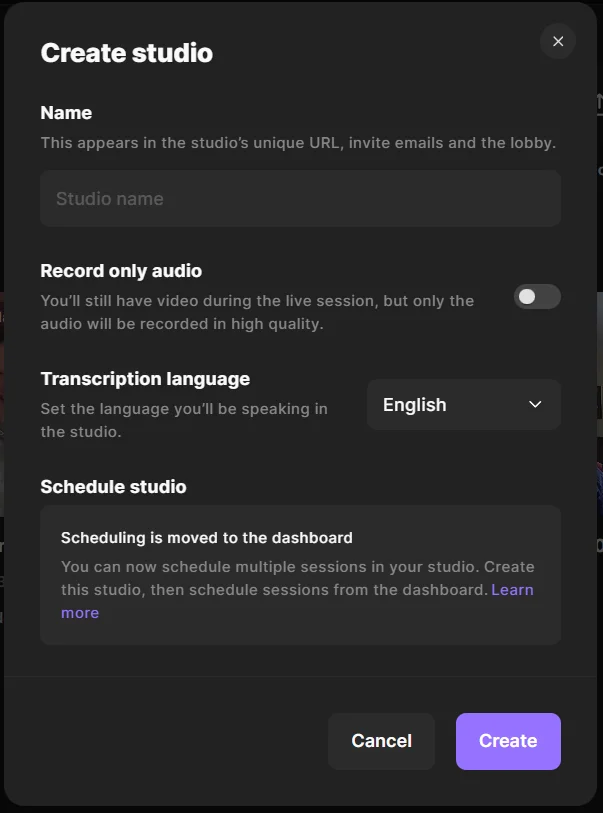
In your dashboard, create a new studio. Give your studio a name and select your recording type. You can choose to set up a studio to start recording immediately or you can set up one for later use.
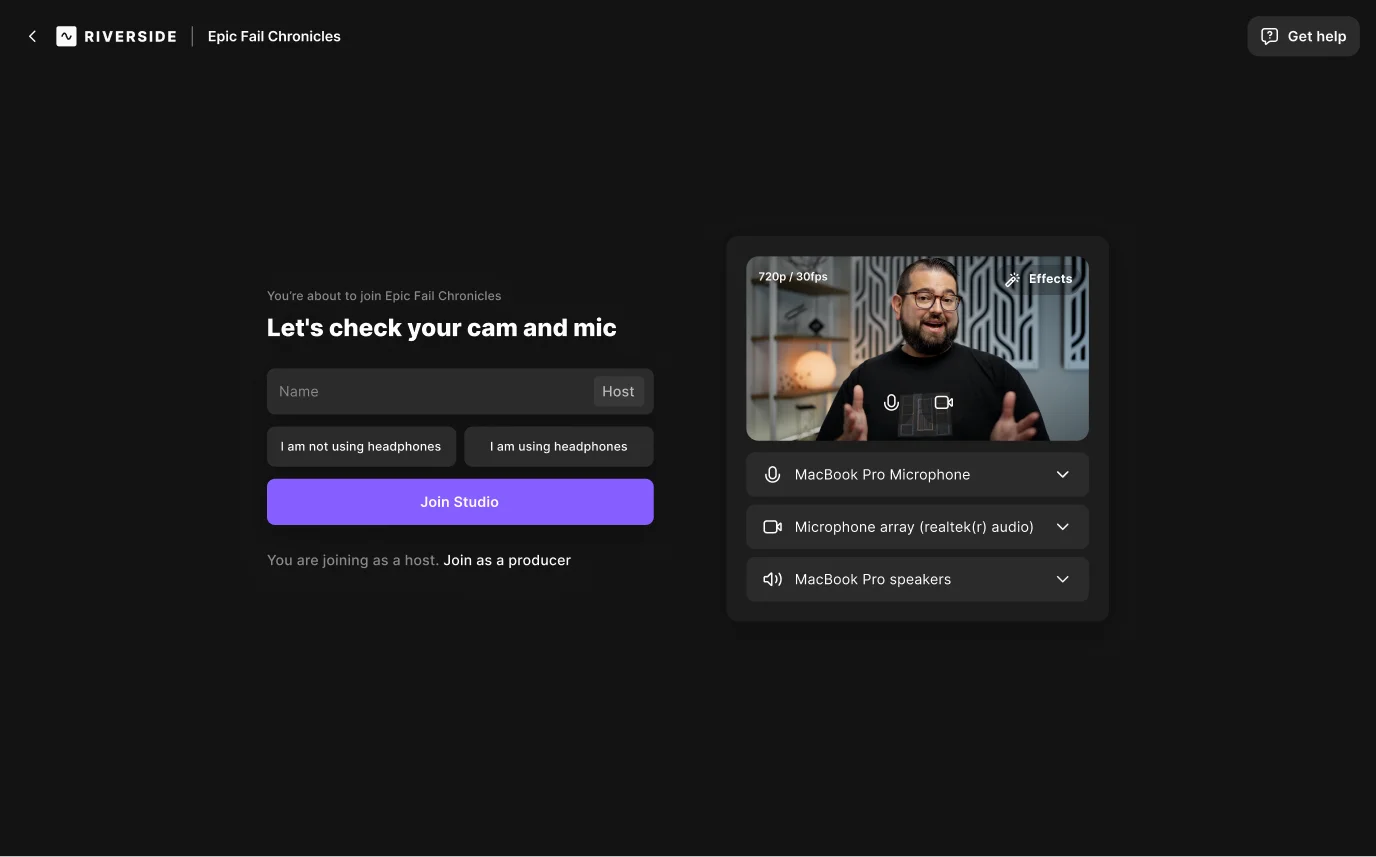
Before entering the studio, you’ll be directed to the Lobby where you can select and test your podcast recording equipment.
If you’re using an audio interface, select it as your audio input.
Select whether you are using headphones or not, and then when you are all set up press “Join Studio”.
4. Select multiple microphones (optional)
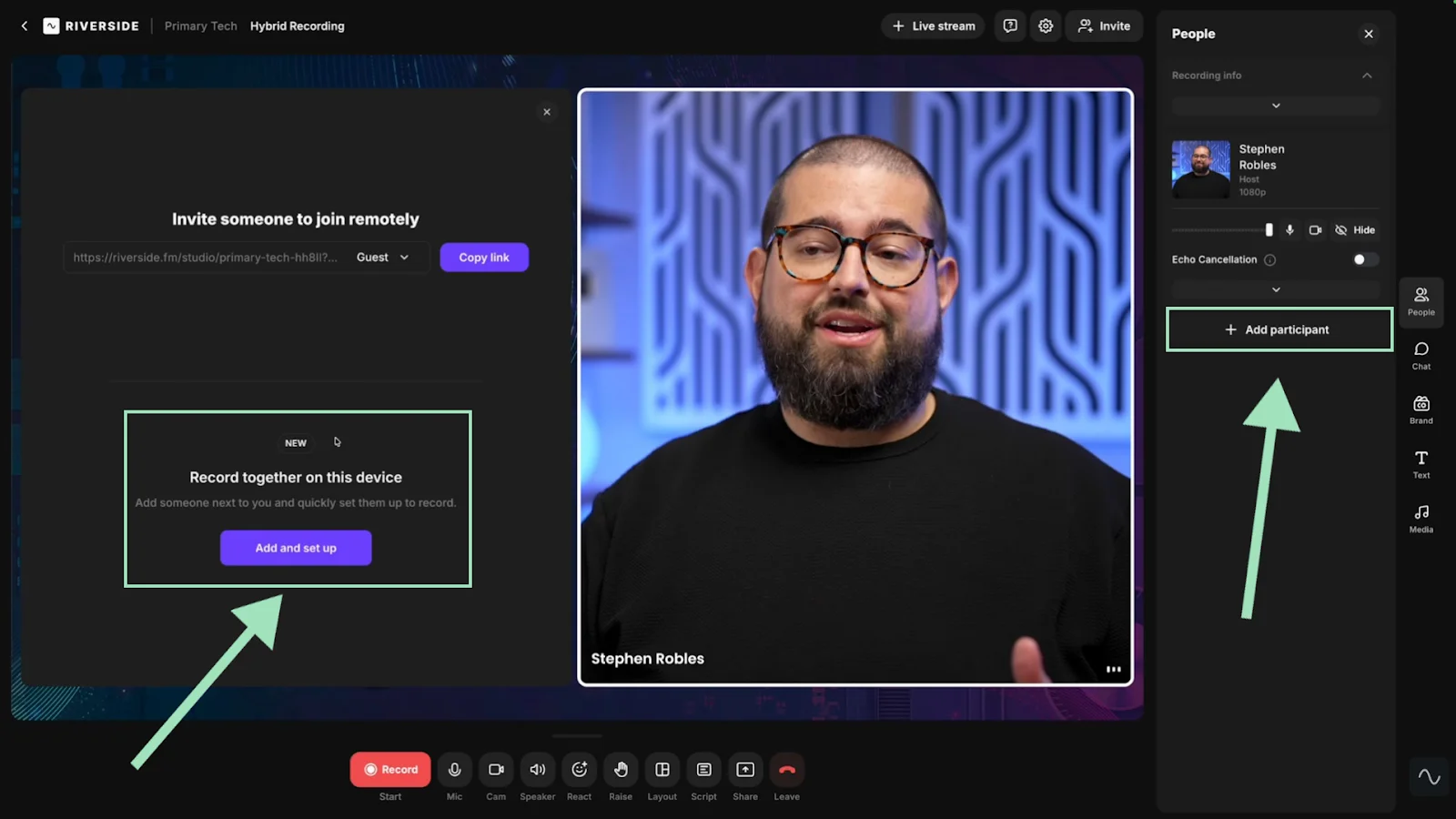
If you’re recording with multiple in-person guests, click on “+ Add participant” from the People tab in your studio. Then select “In-person guest.”
Assign your guests’ second mic as the audio input. Alternatively, if you’re using an audio interface, assign a separate channel to each participant (e.g., Input 1 and Input 2).
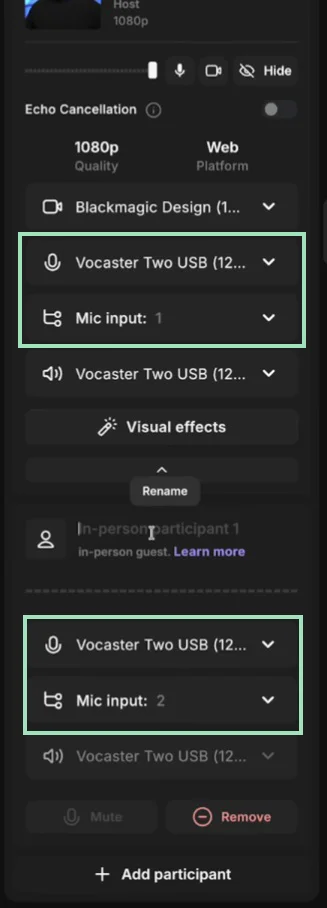
You can find a more detailed walkthrough in our guide on how to record a podcast with multiple mics.
5. Start recording!
Once everybody is happy and ready to go, click the big red record button and start podcast recording.
You can use the Media Board to add live effects, but you can also share your screen.

5. Download the separate tracks
After the recording is completed, wait for your files to download then click on “View recordings”. This takes you to all your studio’s recordings. On the top right of the session page, click “High quality” to save your recordings in separate tracks.

You can also choose to edit and merge your tracks with our native Editor. Simply click the “Edit” button from your Projects page.
Troubleshooting common multitrack recording issues
Here is a quick list of tips to fix the most common issues you can encounter while using multitrack recording software:
Tracks aren’t syncing correctly
This usually happens when one participant has unstable internet during remote sessions. Use software with local recording, like Riverside, so each track is captured independently and stays in perfect sync.
Tracks falling out of sync over time
If your tracks start aligned but slowly drift apart over time, you likely have a sample rate mismatch. For example, your interface is set to 44.1kHz but your project is 48kHz.
Always ensure your hardware and software sample rates match before you hit record.
Crackling or "popping" sounds
This is usually a sign that your computer's CPU is overloaded. Try increasing your buffer size in your audio settings from 128 to 256 samples, for example. Also, close background apps like Chrome tabs that may be draining resources.
FAQS on Multitrack Recording Software
What is the easiest multitrack recorder for beginners?
The easiest multitrack software to use for beginners is Riverside. The app (available on Android and iOS, and browsers on macOS and Windows) is specially designed for multitrack recording.
On Riverside, audio and video are recorded locally (on your computer), thus preventing internet fluctuations from affecting the quality. The recording is progressively uploaded to the cloud.
It’s also one of the few multitrack recorders that can record both remotely and in 4K crisp video.
How to multitrack record on my PC?
To multitrack record on your PC, you first need to ask yourself if you want to record in person or remotely. To record in person, you can use apps like Audacity and hardware like a mixer or an audio interface. To record remotely, you can use an app like Riverside which easily lets you record high-quality audio and video (4K).
Is Audacity a multitrack recorder?
Yes, Audacity can be used as a multitrack recorder. It helps you capture audio recordings of multiple people simultaneously (as long as they’re in the same room – it lacks remote recording) using a mixer or an audio interface.
Can I use multitrack recording software for live streaming?
Yes, you can, but only with the more advanced remote recording platforms. On Riverside, you can record high-quality separate audio and video tracks locally while live streaming. On other, simpler platforms like Zoom, you can only record separate audio files, but the recorded output is compressed and the quality depends on your internet connection.



.webp)
.webp)
.webp)